Audio Production for eLearning Videos: Mics, Music, and Mixing
 Jun, 11 2026
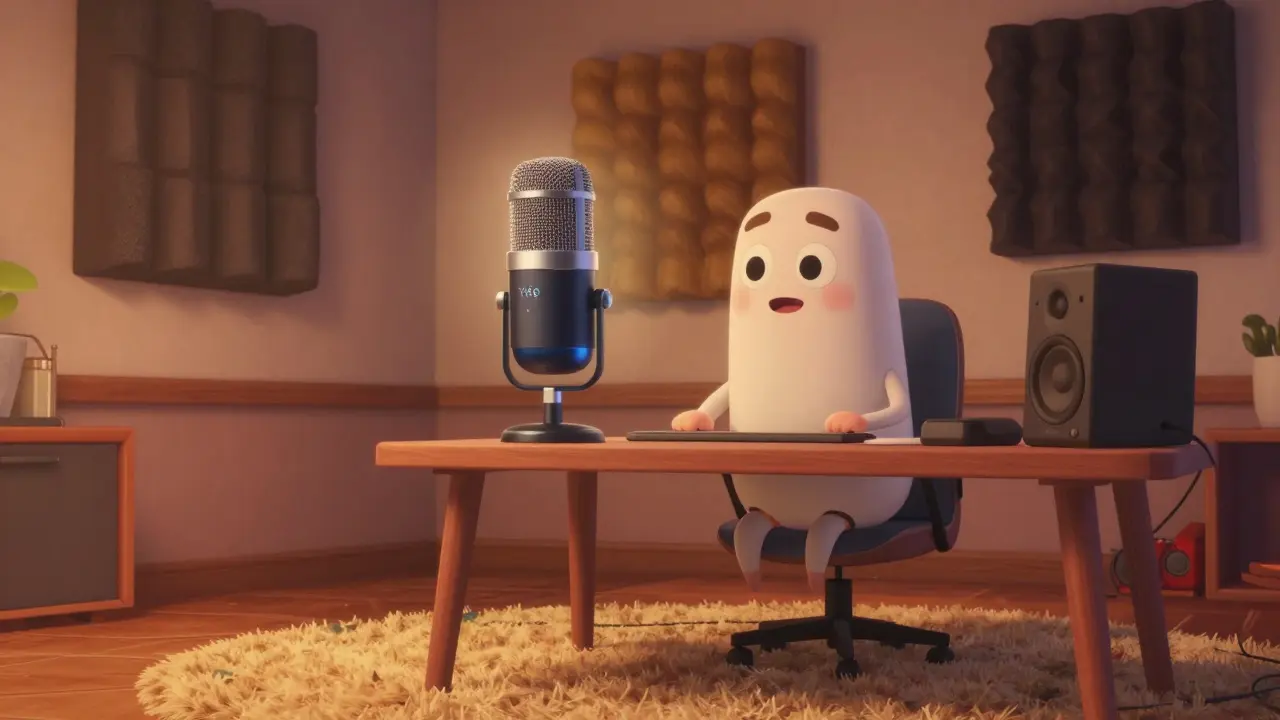
You watch a course. The speaker is brilliant. The slides are crisp. But the audio? It sounds like they’re recording in a bathroom with a tin can on a string. You click away within thirty seconds. Good visuals might keep you watching, but bad audio drives you out the door faster than anything else. In eLearning audio production, sound quality isn’t just a nice-to-have; it’s the backbone of learner retention.
Whether you are a solo instructor or part of a large training department, getting your audio right doesn't require a Hollywood studio budget. It requires understanding three core pillars: capturing clean sound with the right microphone, layering appropriate background music, and mixing everything so it sits perfectly together. Let’s break down exactly how to achieve professional-grade audio without breaking the bank.
Capturing Clean Sound: Choosing the Right Microphone
The chain of audio quality starts at the source. No amount of post-production magic can fix a muddy, noisy recording. Your choice of microphone depends largely on your environment and your delivery style. If you are sitting at a desk reading from a script, you have different needs than someone who paces around while explaining complex diagrams.
For most home-based creators, USB microphones offer the easiest entry point. They plug directly into your computer, requiring no external audio interface. Models like the Blue Yeti or the Rode NT-USB provide solid clarity out of the box. However, if you plan to scale up or need higher fidelity, XLR microphones connected through an audio interface (like a Focusrite Scarlett) are the industry standard. An XLR setup gives you more control over gain staging and allows you to use external preamps, which can significantly reduce noise floor issues.
Consider the polar pattern as well. A cardioid pattern picks up sound primarily from the front, rejecting noise from behind-perfect for untreated rooms. If you are recording two people interviewing each other, a bidirectional pattern might be better. Avoid omnidirectional mics unless you are in a professionally treated acoustic space; otherwise, you will capture every creak of your chair and hum of your fridge.
| Type | Best For | Pros | Cons |
|---|---|---|---|
| USB Condenser | Beginners, quiet rooms | Plug-and-play, affordable | Sensitive to room noise |
| XLR Dynamic | Loud voices, noisy environments | Rejects background noise, durable | Requires audio interface |
| Lavalier (Lapel) | Moving speakers, presentations | Hands-free, consistent distance | Clothing rustle can be audible |
Treating Your Space: Acoustics Matter More Than Gear
You can buy a $1,000 microphone, but if you record it in a bare, echoey room, it will still sound amateurish. Reverberation (echo) makes speech difficult to understand because the reflected sound waves interfere with the direct sound. Your goal is to absorb these reflections.
You don’t need expensive foam panels to start. Hang heavy blankets on walls, place a thick rug on hard floors, and surround yourself with bookshelves. These soft, irregular surfaces break up sound waves. When recording, position your microphone close to your mouth-about six inches away. This uses the proximity effect to boost bass response and ensures the direct sound is much louder than any room reflection. Keep your computer fans and air conditioners off during recording sessions if possible. Even a subtle HVAC hum can ruin a take.
Selecting Background Music That Enhances, Not Distracts
Music in eLearning serves a specific psychological purpose: it sets the mood and maintains energy levels. However, it must never compete with the narrator. The biggest mistake new producers make is choosing tracks that are too loud or have lyrics. Lyrics create cognitive load; learners try to process both the spoken instruction and the sung words, leading to confusion and fatigue.
Stick to instrumental tracks. Look for genres labeled "corporate," "ambient," or "lo-fi." These styles typically feature steady rhythms and minimal melodic variation, keeping them in the background. Platforms like Epidemic Sound, Artlist, or even YouTube’s Audio Library offer vast libraries of royalty-free music. Always check the licensing terms. Some require attribution, while others allow commercial use without credit. For corporate training, ensure you have the rights to use the music globally if your audience is international.
Variety is key. Use upbeat music for introductions and transitions to grab attention. Switch to softer, slower tracks during dense instructional segments where learners need to focus on complex information. Avoid looping short clips repeatedly; human ears detect patterns quickly, and a repetitive loop becomes annoying fast. Instead, edit longer tracks to fit the duration of your video segments.
Mixing and Editing: Balancing the Elements
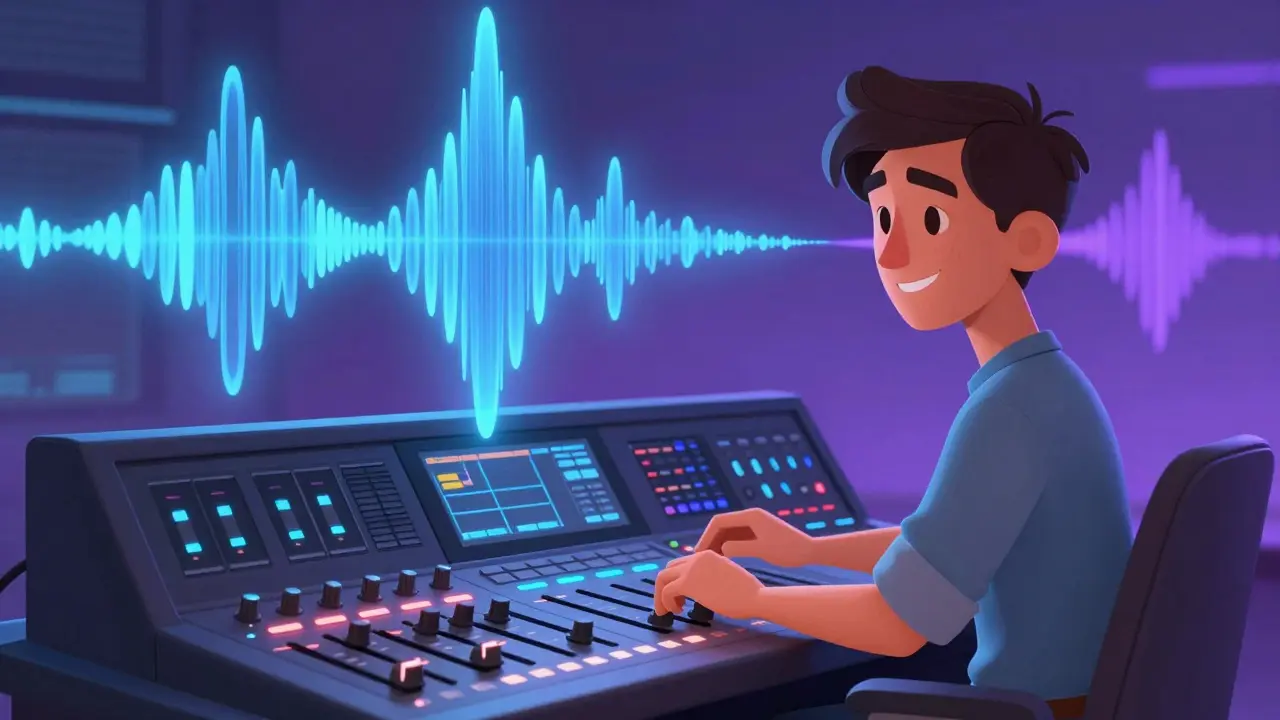
Once you have recorded your voiceover and selected your music, it’s time to mix. This is where you balance the levels so the voice remains clear and dominant while the music supports the narrative. Most non-linear editing systems (NLEs) like Adobe Premiere Pro, Final Cut Pro, or DaVinci Resolve handle this well. Free options like Audacity or Reaper are also powerful enough for basic mixing.
Start by normalizing your voice track. Aim for peak levels between -3dB and -6dB. This prevents clipping (distortion) while ensuring the audio is loud enough. Next, lower the background music. A good rule of thumb is to set music between -20dB and -25dB relative to the voice. This creates a dynamic range where the voice pops forward.
Use ducking techniques. Sidechain compression automatically lowers the music volume whenever the voice plays. This keeps the mix balanced without manual adjustment throughout the entire video. Apply high-pass filters to both voice and music to remove low-frequency rumble below 80Hz. This cleans up mudiness and leaves headroom for the fundamental frequencies of human speech.
- Clean the Voice: Remove breaths, clicks, and mouth noises manually or with AI tools like Adobe Podcast Enhance.
- Apply EQ: Boost presence (2kHz-5kHz) slightly for clarity. Cut boxiness (200Hz-400Hz) if the voice sounds hollow.
- Add Compression: Use a ratio of 3:1 to 4:1 to even out volume spikes. Set the threshold so only the loudest parts are reduced.
- Layer Music: Import your chosen track. Lower its volume significantly.
- Fade Ins and Outs: Never let audio start or stop abruptly. Use crossfades of 1-2 seconds for smooth transitions.

Exporting for Consistency Across Devices
Your learners will watch your videos on smartphones, tablets, laptops, and smart TVs. Each device has different speakers and amplifiers. To ensure consistency, export your final audio using standardized settings. The AAC codec (Advanced Audio Coding) at 192kbps or higher is widely supported and offers excellent quality-to-file-size ratio. For MP4 containers, H.264 video paired with AAC audio is the universal standard.
Avoid exporting at maximum bitrates unnecessarily. While 320kbps MP3 sounds great on high-end headphones, it increases file size and streaming latency for mobile users. Stick to 128kbps-192kbps for voice-heavy content. Always do a final listen on multiple devices before publishing. What sounds perfect on studio monitors might be distorted on a cheap smartphone speaker due to poor low-frequency handling.
Common Pitfalls to Avoid
Even experienced producers slip up. One common error is inconsistent volume levels between scenes. If one segment is significantly louder than another, it jolts the listener. Use loudness standards like LUFS (Loudness Units Full Scale). Aim for -16 LUFS for online video platforms. Most modern editing software includes a loudness meter to help you hit this target accurately.
Another pitfall is over-processing. Too much reverb makes speech unintelligible. Excessive compression squashes the life out of your voice, making it sound robotic. Less is often more. Trust your ears. If it sounds natural, it probably is. Don’t chase perfection; chase clarity. Learners forgive minor imperfections if they can easily understand the material. They won’t forgive distraction.
What is the best microphone for beginners doing eLearning?
A USB condenser microphone like the Blue Yeti or Rode NT-USB is ideal for beginners. These mics plug directly into your computer, require no extra gear, and deliver clear audio suitable for most home office environments. Just ensure you record in a quiet, soft-furnished room to minimize echo.
How loud should background music be compared to voiceover?
Background music should sit between -20dB and -25dB lower than your voice track. The voice must always be the focal point. If you find yourself straining to hear the narration, turn the music down further. Using sidechain compression can help automate this balance dynamically.
Can I use free music from YouTube for my paid courses?
Only if the license explicitly permits commercial use. Many "royalty-free" tracks on YouTube still require attribution or restrict monetization. For professional eLearning products, investing in a subscription service like Epidemic Sound or Artlist ensures legal safety and access to higher-quality, curated libraries designed for corporate media.
What does LUFS mean in audio mixing?
LUFS stands for Loudness Units Full Scale. It measures the perceived loudness of audio over time, rather than just peak volume. For eLearning videos hosted on platforms like YouTube or Vimeo, aiming for -16 LUFS ensures your audio matches industry standards and sounds consistent with other content viewers expect.
Do I need an audio interface if I have a USB mic?
No, a USB microphone connects directly to your computer via USB cable and handles analog-to-digital conversion internally. An audio interface is only necessary if you are using an XLR microphone, which requires phantom power and preamp gain provided by the interface.
om gman
June 11, 2026 AT 11:49another guide for people who think buying a mic fixes their bad voice acting skills lol
Oskar Falkenberg
June 12, 2026 AT 11:10i totally agree with the bit about acoustics being more important than gear because i spent like three years thinking my room sounded fine when it was actually just full of echo and then i finally hung up some heavy blankets from the thrift store and wow what a difference it made honestly you dont need to spend thousands on foam panels if you can find thick curtains or even mattresses leaning against the wall it really does absorb that mid range frequency that makes your voice sound boxy and hollow so please do not feel pressured to buy expensive treatment right away just start with whatever soft stuff you have lying around and see how much better it sounds before you drop any cash on specialized equipment
Jeanne Abrahams
June 13, 2026 AT 02:05oh darling, we in south africa have been dealing with load shedding so our 'background noise' is usually the hum of a generator or the silence of a blacked out house which teaches you quickly that dynamic mics are your best friend when the power grid decides to take a nap anyway great tips but maybe add a section on recording during a crisis
Caitlin Donehue
June 13, 2026 AT 15:52i noticed a lot of people skip the compression step and wonder why their audio sounds uneven
Stephanie Frank
June 15, 2026 AT 01:05the article says use -16 LUFS but anyone who has actually worked in broadcast knows that platforms normalize differently and if you target -16 for youtube you might be too quiet for vimeo or vice versa so this advice is dangerously generic and shows a lack of real world experience with multi platform distribution strategies
Marissa Haque
June 15, 2026 AT 08:45OMG! I literally screamed when I read the part about sidechain compression!!! It is such a game changer!!! Why doesn't everyone know about this already??? I feel like I've been living under a rock!!! Thank you so much for sharing this vital information!!!
Keith Barker
June 16, 2026 AT 08:55audio is just vibration manipulating air molecules to create an illusion of presence in the mind of the listener
Lisa Puster
June 16, 2026 AT 17:22stop importing all these foreign audio standards into our domestic production pipelines we should be using american loudness norms exclusively to support local industry practices and stop relying on international metrics that dilute our cultural identity through standardized decibel levels
Joe Walters
June 17, 2026 AT 01:37u guys r all missing the point its not about the mic its about the soul of the performer u cant compress a dead performance no matter how many plugins u stack on top of it trust me ive tried and failed miserably multiple times
Robert Barakat
June 18, 2026 AT 14:45silence is often louder than words yet we fill every void with music
Michael Richards
June 20, 2026 AT 07:18listen up amateurs if you are still using omnidirectional mics in untreated rooms you are doing it wrong stop wasting your time and money and get a cardioid dynamic mic immediately because there is no excuse for poor audio quality in 2024 unless you want to look like a complete novice which most of you currently do
Laura Davis
June 21, 2026 AT 18:57you got this!! remember that learning new skills takes time and patience so dont be hard on yourself if your first few recordings dont sound perfect keep practicing and experimenting with different mic positions until you find what works best for your unique voice and environment!
Lisa Nally
June 22, 2026 AT 07:56it is imperative that one understands the psychoacoustic implications of high pass filtering as failing to remove sub harmonic frequencies below eighty hertz results in phase cancellation issues that degrade the intelligibility quotient of the spoken word thereby rendering the educational content ineffective for the target demographic
Edward Gilbreath
June 24, 2026 AT 03:44they want you to buy expensive gear so they can track your listening habits through the metadata embedded in the files
Bineesh Mathew
June 25, 2026 AT 18:08the true essence of audio lies not in the fidelity of the capture but in the moral purity of the message delivered for what is a clear voice if the intent behind it is corrupt thus we must first cleanse our souls before we dare to touch the faders of our mixing consoles lest we produce nothing but digital garbage that pollutes the ether with its vacuous resonance