How to Turn Office Hours Replays into High-Value Course Content
 Jun, 30 2026
You spent three hours last Tuesday answering the same question about Python loops for the tenth time. It’s frustrating, right? But here is the twist: that recording isn’t just a digital graveyard of repetitive answers. It is raw gold for your online course curriculum. Most instructors treat live office hours as disposable events-happenings that vanish once the Zoom call ends. They miss a massive opportunity to transform these unstructured interactions into polished, evergreen learning assets.
In 2026, students don't just want pre-recorded lectures; they crave authenticity and real-time problem-solving. By packaging your office hour replays, you bridge the gap between rigid syllabus content and the messy, real-world application of skills. This approach not only saves you from repeating yourself but also creates a dynamic library of solutions that address actual student pain points.
The Hidden Value in Unstructured Q&A
Why do office hours matter so much? Because they reveal what your lesson plans got wrong. When you record a standard lecture, you are teaching what you *think* they need. During office hours, you see what they *actually* struggle with. These sessions are rich with context-specific examples, nuanced troubleshooting steps, and peer-to-peer learning moments that scripted videos often lack.
Consider the difference between a generic tutorial on "How to Use Excel Pivot Tables" and a replay where you debug a specific dataset a student brought in. The latter has higher retention value because it solves a concrete problem. By capturing these moments, you create content that feels personal and responsive. This shifts your course from a static product to a living resource.
- Identify Gaps: Frequent questions highlight missing topics in your main modules.
- Capture Nuance: Live explanations often include tips and tricks that aren't in the textbook.
- Build Community: Seeing peers ask questions validates the learner's own confusion.
Technical Setup: Recording Without Friction
You cannot package what you haven't captured. The first step is ensuring your recording setup is seamless. If you have to fumble with software at the start of every session, you will skip it. In 2026, most platforms like Zoom, Microsoft Teams, or Google Meet offer cloud recording directly. However, relying solely on platform defaults can be risky due to storage limits or privacy settings.
I recommend using a dedicated screen recorder like OBS Studio (free) or Camtasia for more control. Ensure you are recording both audio and video, including any shared screens. A crucial detail: get consent. Always announce at the beginning that the session is being recorded for educational purposes. This protects you legally and sets expectations for participants.
| Tool | Best For | Key Feature | Cost |
|---|---|---|---|
| OBS Studio | Advanced users | Custom scenes, no watermarks | Free |
| Zoom Cloud Record | Quick setups | Automatic transcription | Paid Pro/Business |
| Camtasia | Editing later | Built-in editor | One-time purchase |
Editing Strategy: From Raw Footage to Bite-Sized Lessons
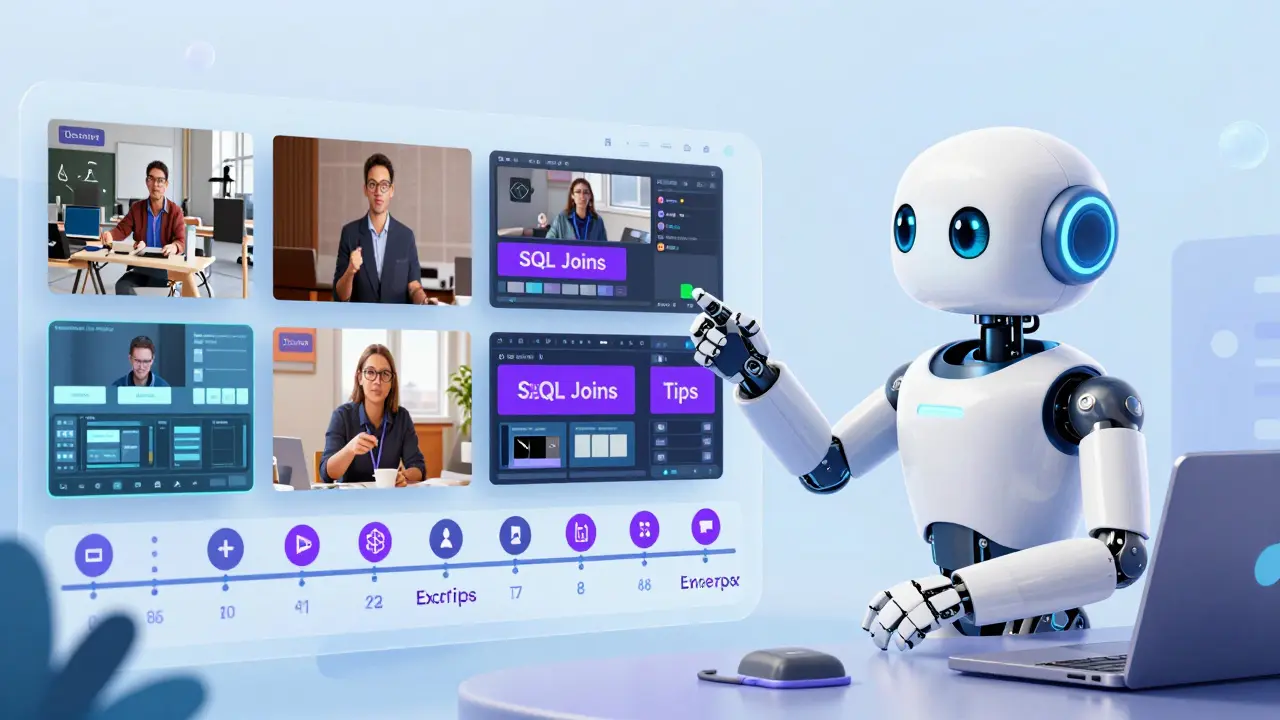
A two-hour office hour session is too long for most learners to consume as a single unit. The key to successful repurposing is segmentation. You don't need to edit out every pause or "um," but you must cut the fluff. Focus on the question-and-answer pairs. Each distinct topic should become its own short video clip, ideally under five minutes.
Use AI-powered editing tools to speed this up. Platforms like Descript or Adobe Premiere Pro now offer features that automatically remove silences and generate transcripts. You can literally delete words in the text transcript to cut the video. This reduces editing time by up to 70%. Once segmented, add clear titles to each clip, such as "Debugging SQL Joins" rather than "Office Hour #4 - Part 1."
- Transcribe: Generate a full transcript of the session.
- Tag Topics: Highlight sections where specific questions were asked.
- Clip & Cut: Extract those segments into individual files.
- Polish: Add intro/outro slides if necessary for branding.
Integrating Replays into Your LMS Structure
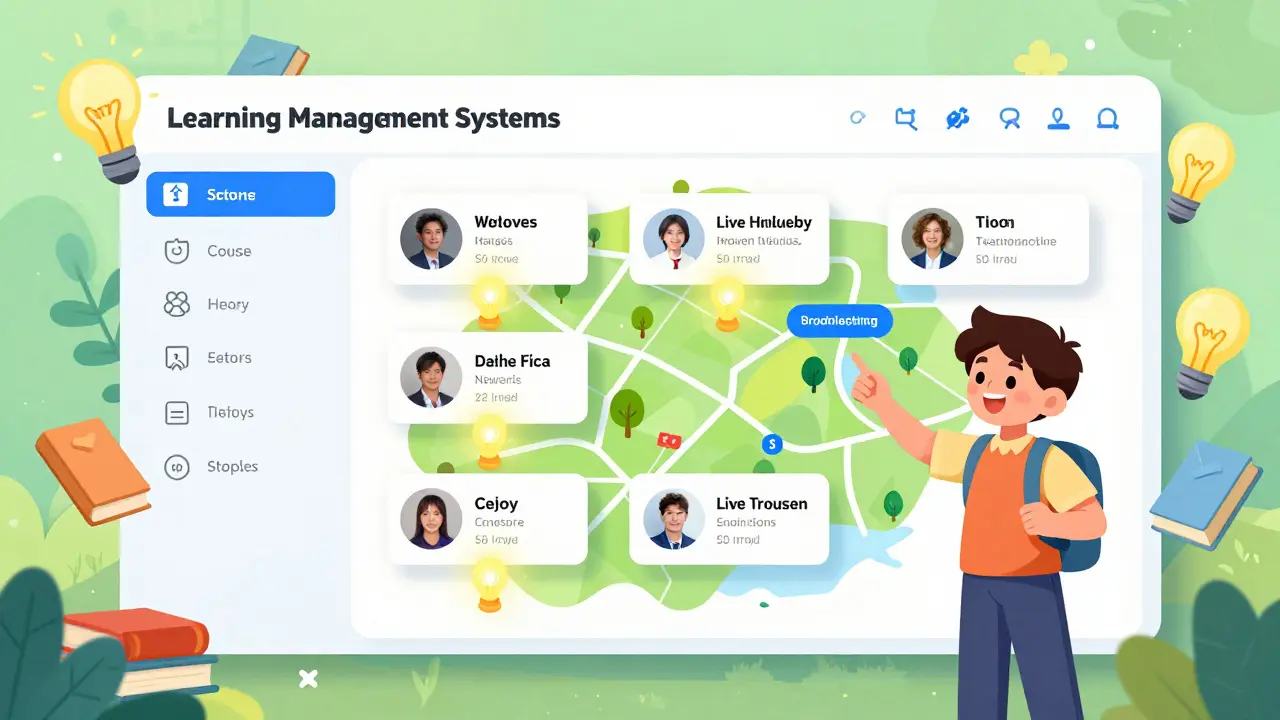
Where do these clips go? Dumping them in a folder labeled "Archive" defeats the purpose. You need to integrate them into your Learning Management System (LMS) strategically. Create a dedicated module called "Live Troubleshooting" or "Deep Dives." Alternatively, embed specific clips directly into relevant lessons. If Lesson 3 covers "Marketing Funnels," and an office hour replay addresses "Common Funnel Errors," link that replay at the end of Lesson 3.
This contextual linking reinforces learning. Students finish a theory module and immediately see a practical application of that theory in a live setting. It mimics the Socratic method, where understanding deepens through dialogue. Make sure your LMS supports video hosting or integrates with services like Vimeo or Wistia to ensure smooth playback without buffering issues.
Leveraging Transcripts for Searchability
Video is great, but text is searchable. Many students prefer reading over watching, especially when looking for a quick answer. By converting your replays into text, you double the utility of your content. Use the transcripts to create FAQ pages, blog posts, or downloadable cheat sheets.
For example, if ten students asked about "citation styles" in one session, compile those answers into a PDF guide titled "Citation Style Quick Reference." This turns a one-time conversation into a permanent resource. It also improves SEO for your course website, as search engines can index the text content derived from your videos.
Maintaining Freshness and Relevance
One risk of using old replays is outdated information. Software updates, policy changes, or new research can make last year's advice obsolete. Before publishing any archived replay, review it for accuracy. Add a disclaimer if needed, such as "Recorded in June 2025; check current version for latest updates."
Establish a routine. Every quarter, archive older replays that are no longer relevant and replace them with fresh ones. This keeps your course content dynamic and trustworthy. Students appreciate knowing that the instructor is actively maintaining the material.
Engaging Students with Past Sessions
Don't just upload and forget. Encourage students to use these resources. Announce in your weekly announcements: "Struggling with X? Check out last week's office hour replay on Y." This drives traffic to your archived content and helps students who missed the live session feel included. It also fosters a self-directed learning culture, where students know where to find help beyond the immediate classroom interaction.
Is it legal to record office hours?
Yes, provided you have explicit consent from all participants. In many jurisdictions, including the US, one-party consent is sufficient, but ethical best practices dictate informing everyone at the start. Check your institution's specific policies on data privacy and recording.
How long should edited replays be?
Aim for 3-5 minutes per clip. Micro-learning principles suggest that shorter, focused videos lead to better retention. If a topic is complex, break it into multiple short clips rather than one long video.
Can I use AI to edit my replays?
Absolutely. AI tools can transcribe, remove silences, and even generate captions automatically. This significantly reduces the manual labor involved in post-production, allowing you to focus on content quality rather than technical editing.
What if a student asks a private question during office hours?
Never include private or sensitive student information in public replays. If a question involves personal grades or confidential data, handle it privately via email or office visit. Blur faces or mute audio if necessary before editing.
How do I organize these replays in my course?
Create a dedicated section in your LMS for "Live Q&A Archives." Organize clips by topic rather than date. This makes it easier for students to find solutions to specific problems they are facing.