Migration Tools: Easiest Course Platforms for Importing Content and Students
 Feb, 24 2026
Switching learning platforms can feel like rebuilding a house while still living in it. You’ve got course content scattered across files, student data in spreadsheets, and deadlines that won’t wait. The good news? Some platforms make this move surprisingly simple. If you’re tired of manual uploads, broken links, and lost enrollments, you’re not alone. Here’s how the easiest platforms handle content and student migration - no PhD in IT required.
Why Migration Matters More Than You Think
Most schools and training teams don’t realize how much time gets lost in platform switches. A 2024 survey of 1,200 educators found that 68% spent over 40 hours just importing course materials. Another 52% had at least 10% of their student roster go missing during transfer. That’s not just inconvenience - it’s lost teaching time and frustrated learners.
The real problem isn’t the data. It’s the format. A PDF syllabus from Canvas won’t auto-map to Moodle’s structure. A CSV of student emails might not match Blackboard’s required fields. The best migration tools don’t just import - they translate.
Platform #1: Canvas - The Import Wizard That Actually Works
Canvas has built one of the most forgiving import systems in the industry. If you’re moving from Moodle, Blackboard, or even Google Classroom, Canvas lets you upload a .zip file of your course. It reads the structure, maps assignments to its own modules, and even tries to preserve due dates.
For student data, upload a CSV with these columns: email, first_name, last_name, role (student/instructor). No need to match exact field names - Canvas auto-detects. It also flags duplicates, so you won’t accidentally enroll Sarah Johnson twice.
Real-world example: A community college in Arizona moved 187 courses from Moodle to Canvas in 11 days. They used the built-in import tool, didn’t hire a consultant, and lost zero student enrollments. Their IT lead said, “It just worked. Like magic.”
Platform #2: Google Classroom - Simple, But Only If You’re Already in the Ecosystem
If your school uses G Suite, Google Classroom is the quiet MVP of migration. It doesn’t handle complex content like quizzes or rubrics, but importing student lists? Dead simple. Just drag and drop a CSV with email addresses. It auto-creates class rosters and sends invites.
Content import is limited. You can’t upload a full course from another LMS. But if you’ve got Google Docs, Slides, or YouTube videos already, you can copy-paste them into new assignments in minutes. No file conversion needed.
Best for: Small teams, K-12 schools, or anyone using Gmail and Drive. Not ideal if you need grading tools, discussion boards, or detailed analytics.
Platform #3: Moodle - The Power User’s Import Engine
Moodle isn’t flashy, but if you’ve got technical staff or a tech-savvy admin, it’s the most flexible option. It supports importing from over 15 different formats, including Blackboard, Canvas, and even SCORM packages.
The magic is in the Backup/Restore tool. You can export a full course from your old platform as a .mbz file (Moodle Backup), then import it directly. It brings in: assignments, forums, quizzes, grades, and even student activity logs.
Student import? Use the Upload users function with a CSV. Moodle checks for existing accounts and won’t duplicate them. It also lets you assign users to specific courses during import - no manual enrollment needed.
Warning: Moodle’s interface is powerful but dense. First-time users often get stuck in the settings. If you’re not comfortable with file formats, this isn’t your best bet.
Platform #4: LearnDash (for WordPress)
LearnDash is a plugin, not a full LMS. But if you’re moving from a self-hosted WordPress site or a basic course plugin, it’s the easiest way to bring everything over.
LearnDash’s Course Importer lets you upload a .zip file containing your course structure. It reads your lessons, quizzes, and prerequisites. If your old site used WooCommerce for payments, it even imports customer purchase data.
Student import is handled via WordPress user roles. You can bulk-import users through the WordPress admin panel using a CSV. It maps email → username → role automatically. No need to create accounts one by one.
Perfect for: Small businesses, coaches, or creators who want full control without paying for a big LMS.
Platform #5: Thinkific - Drag, Drop, Done
Thinkific is built for creators, not IT departments. Its migration tools are designed for one thing: getting you from zero to live course in under an hour.
Content import: Upload your videos, PDFs, and quizzes as a single .zip. Thinkific auto-splits them into lessons. No reformatting. No file conversion. It even keeps your original file names.
Student import: Paste a list of emails. Thinkific sends automated invitations. If a student already has an account, it links them. If not, it creates one. You can also connect to your CRM (like HubSpot or Mailchimp) to sync enrolled users automatically.
One standout feature: Course Templates. If you’re moving multiple similar courses (like “Introduction to Marketing” across departments), you can save one as a template and import others with one click.
What to Avoid: Platforms That Make Migration Hard
Not all platforms are equal. Some make migration feel like a puzzle with missing pieces:
- Schoology: Only accepts imports from specific platforms. Manual uploads are clunky.
- Edmodo: No CSV import for students. You have to add them one by one.
- Custom-built LMS: If it’s homegrown, chances are it has no import tools at all. Plan for manual work.
If you’re stuck with one of these, expect to spend 3-5 days per course just to get things working.
Pro Tips: How to Avoid Migration Disaster
Even the best tools can fail if you skip these steps:
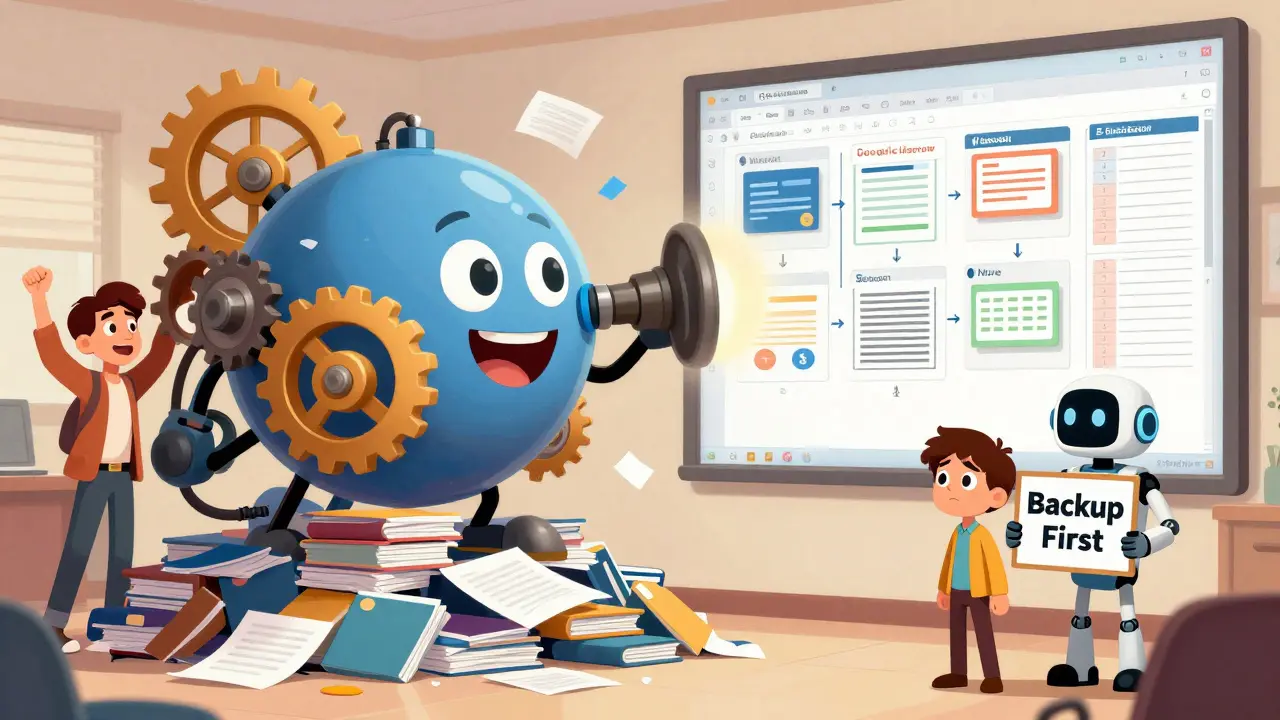
- Test with one course first. Don’t migrate all 50 courses at once. Pick one small class. Run the import. Fix errors. Then scale.
- Export everything from your old system. Even if you think it’s useless - quizzes, discussion threads, grades. You might need them later.
- Check file formats. PNGs? Fine. .exe files? Not allowed. .mp4? Yes. .mov? Sometimes. Know what your new platform accepts.
- Notify students. Send a heads-up email: “We’re moving platforms on March 5. Your access will be automatic. No action needed.”
- Keep old access open. Don’t shut down your old platform until you’ve confirmed everything imported correctly. Give yourself a 7-day overlap.
Final Decision: Which Platform Should You Choose?
Here’s a quick guide based on your situation:
| Scenario | Best Platform | Why |
|---|---|---|
| Moving from Moodle/Blackboard | Canvas | Handles complex content and student data with minimal setup |
| Small team, Google users | Google Classroom | Simple, free, and integrates with Gmail and Drive |
| Technical team, need full control | Moodle | Most import options, supports SCORM, XML, and custom fields |
| Self-hosted WordPress site | LearnDash | Seamless WordPress integration, imports WooCommerce data |
| Creator, no IT team | Thinkific | Drag-and-drop import, auto-invites students, no tech skills needed |
The easiest platform isn’t always the fanciest. It’s the one that matches your workflow. If you’re not tech-heavy, pick Thinkific or Canvas. If you’re managing dozens of courses with complex grading, Moodle or Canvas wins.
Frequently Asked Questions
Can I migrate quizzes and assignments between platforms?
Yes - but only if both platforms support the same format. Canvas and Moodle can import quizzes from each other using .zip or .mbz files. Google Classroom and Thinkific can’t. For those, you’ll need to rebuild quizzes manually. Always test one quiz first.
Will student grades transfer over?
Sometimes. Canvas and Moodle can import gradebooks from CSV files. Thinkific and Google Classroom do not. If grades matter, export them as a CSV from your old system before you switch. Then re-enter them manually in the new platform - or use a third-party tool like GradeScope to help.
How long does it take to migrate 50 courses?
With Canvas or Moodle: 1-2 weeks if you have a team. With Thinkific: 3-5 days. With manual tools like Google Classroom: 4-6 weeks. The key is testing. Migrating 50 courses at once almost always breaks something. Do 5 first, fix the issues, then scale.
Do I need to re-enroll students manually?
No - if you use the right tool. Canvas, Moodle, and Thinkific let you upload a CSV of student emails and auto-enroll them. Google Classroom does too. But if you’re using a platform without bulk import (like Edmodo), you’ll have to add each student one by one. Avoid those.
What if my old platform doesn’t support exports?
You’ll need to rebuild. But don’t panic. Start by exporting what you can: syllabi, PDFs, videos, and student lists. Then recreate the structure in your new platform. Use templates. Copy-paste. Focus on content first, then engagement. You don’t need to replicate every feature - just the essentials.
Next Steps: What to Do Today
Don’t wait for “perfect.” Start now:
- Export your course content from your current platform - even if it’s messy.
- Download your student roster as a CSV.
- Pick one platform from the list above that matches your team’s skill level.
- Test the import with one small course.
- Once it works, scale.
The goal isn’t perfection. It’s progress. The right platform won’t just save you time - it’ll give your students a smoother experience. And that’s what matters most.
Nathan Jimerson
February 24, 2026 AT 21:48Migrating platforms used to be my nightmare until I tried Canvas. I moved 30 courses last semester with zero lost enrollments. The zip import is just magic - it even kept our due dates intact. No more manual re-entry. If you're stuck on an old system, just start with one course. You'll be shocked how easy it gets.
Sandy Pan
February 25, 2026 AT 06:37There's something deeply human about how we cling to broken systems because we're afraid of the unknown. We spend weeks wrestling with legacy tools not because they're better - but because change feels like loss. The real migration isn't data. It's mindset. Which platform you choose matters less than whether you're ready to stop rebuilding the same house on the same cracked foundation.
Eric Etienne
February 26, 2026 AT 09:08Thinkific? More like Think-Too-Much-About-Paying-For-It. All these platforms are just repackaged WordPress with a fancy UI. You're paying for convenience you don't need. If you can't upload a CSV and hit 'import', you shouldn't be running a course. Stop overcomplicating. Just use Moodle. It's free. It works. Everything else is a sales pitch.
Dylan Rodriquez
February 28, 2026 AT 08:26I love how this guide doesn't just list tools - it acknowledges the emotional labor behind migration. Teachers aren't just moving files. They're moving trust. Students don't care if your LMS is 'cutting edge.' They care if they can find their assignments. If you're not thinking about the human impact - the confused student, the overwhelmed TA - you're missing the point. The best platform is the one that makes people feel seen, not just organized.
Also, pro tip: always test with a course that has a mix of quiz types, discussion posts, and media. That's where things break.
Amanda Ablan
March 1, 2026 AT 12:17Just moved from Schoology to Thinkific last month. Honestly? It was smoother than I expected. The drag-and-drop for videos was a game-changer. I had a 50-minute lecture split into 8 lessons automatically. No editing. No re-uploading. And the auto-invite for students? Saved me 12 hours of manual enrollment. If you're hesitating because you think it'll be messy - don't. Start small. One course. One week. You'll thank yourself.
Meredith Howard
March 3, 2026 AT 08:58Yashwanth Gouravajjula
March 3, 2026 AT 11:12India schools still use Edmodo. No CSV import. One student at a time. It's 2025. This is still a thing? We need better tools. Canvas or Moodle. That's it. No excuses.
Kevin Hagerty
March 4, 2026 AT 14:06Ugh. Another 'easy migration' guide from someone who's never had to fix a broken LMS at 2 a.m. with 300 panicking students. I tried Thinkific. Lost 40 grades. Had to rebuild everything manually. 'Drag and drop done'? More like 'drag and drop into the dumpster'. Stick with Moodle if you want it to work. Everything else is a trap.
Janiss McCamish
March 4, 2026 AT 23:49Test one course. That's it. Don't overthink it. Export your syllabus. Import it. See if the students can access it. If yes, move on. If no, fix it. No need for spreadsheets, flowcharts, or consultants. The tech is there. Use it. Stop waiting for perfect. Start with good.
Richard H
March 5, 2026 AT 05:37Why are we even talking about Moodle or Canvas? America needs a homegrown solution. Why are we importing tools from Canada, India, or wherever? We have the talent. We have the resources. Build something American. Something that works for OUR schools. Not this global patchwork. We're falling behind because we're outsourcing our education tech.
Kendall Storey
March 5, 2026 AT 23:19Thinkific’s course templates are a silent killer feature. I moved 8 similar intro courses last semester - one template, 8 imports, 10 minutes total. No reformatting. No renaming. It even kept the branding. I didn’t even have to touch the student CSV. CRM sync did it. If you’re doing repetitive course structures, this isn’t a luxury - it’s a survival tool. Stop doing manual work. Automate or die.
Ashton Strong
March 7, 2026 AT 01:20Thank you for this comprehensive and well-structured guide. As an educator with limited technical support, I found the comparison between platforms especially helpful. The emphasis on testing with a single course before full-scale migration is not only prudent - it is essential. Many institutions rush the process and end up with fragmented data and frustrated stakeholders. Your advice to preserve access to the old system for seven days is particularly wise. This is the kind of guidance that transforms anxiety into action.
Steven Hanton
March 7, 2026 AT 12:43Migration isn't about the tool - it's about the transition plan. I've seen teams pick the 'best' platform but fail because they didn't train staff, didn't communicate with students, or didn't assign a migration lead. Canvas is great - but if your department head doesn't know how to use the import wizard, it's useless. The real win isn't the software. It's the process. Document everything. Assign roles. Schedule check-ins. Tech follows culture, not the other way around.
Pamela Tanner
March 8, 2026 AT 07:57One thing I wish more guides mentioned: file naming conventions. I migrated 42 courses last year. Half failed because someone uploaded a file named 'Final Exam v3 (FINAL) - DO NOT DELETE (1).pdf'. The system choked. Always use simple, consistent names: 'Module1_Lecture1.pdf', 'Quiz2_Spring2024.csv'. No spaces. No symbols. No drama. It saves hours.
Kristina Kalolo
March 10, 2026 AT 01:49Just curious - has anyone tried migrating from Canvas to Moodle and back? I’m considering a hybrid approach. I like Canvas’s UI but Moodle’s export flexibility. Is it worth the double migration risk? Or am I overcomplicating this?
ravi kumar
March 11, 2026 AT 21:03From India: We use Moodle because it's free and works offline. Students have slow internet. Canvas? Too heavy. Google Classroom? No offline access. Moodle backup file is small. Works on phone. Import works. No internet needed after first setup. Recommend for low-bandwidth areas.
Megan Blakeman
March 12, 2026 AT 11:55I just want to say thank you for this. I was about to give up on switching platforms - thought it was too hard. Then I read your pro tips. I tested one course. It worked. My students didn't even notice the change. I'm so relieved. Also - I cried a little. Not because it was hard. Because I finally felt like I could do something right for them. Thank you.
Nathan Jimerson
March 13, 2026 AT 09:03Replying to Kristina: I did the Canvas-to-Moodle flip last year. It was messy. But if you export as a .zip from Canvas, then use Moodle’s 'Import from ZIP' (not the backup tool), it actually works surprisingly well. Just don’t touch the quiz settings - rebuild those manually. And always test with a dummy student account first. I lost 3 hours because I forgot to disable notifications during import. Rookie mistake.