No-Code Web Design Course: Master Webflow and CMS Fundamentals Without Writing Code
 Jan, 7 2026
Want to build a professional website without touching a single line of code? You’re not alone. Thousands of entrepreneurs, small business owners, and creatives are ditching developers and using no-code tools to launch websites in days, not months. And at the center of this shift is Webflow is a visual web design platform that lets users build responsive websites using a drag-and-drop interface, with full control over design and functionality without writing code. Also known as Webflow Designer, it launched in 2013 and now powers over 2 million websites, from portfolios to e-commerce stores.
Why Webflow Is the Top Choice for No-Code Web Design
There are plenty of website builders out there - Wix, Squarespace, Canva, Shopify - but Webflow stands out because it doesn’t sacrifice control for simplicity. You don’t have to pick between a pre-made template and total chaos. Webflow gives you pixel-perfect design freedom, clean code output, and real CMS power - all without writing JavaScript, HTML, or CSS.
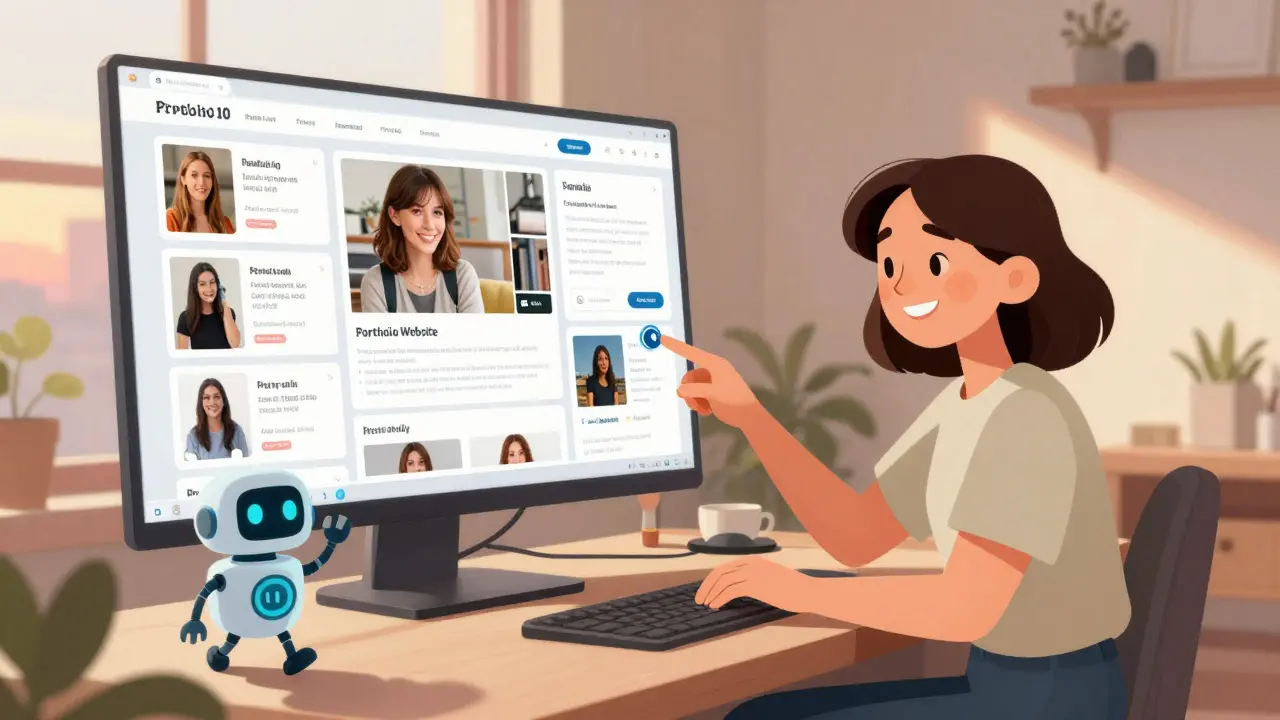
Take Sarah, a freelance photographer in Portland. She wanted a portfolio site that showed her work beautifully, had a blog for client testimonials, and let her update gallery images herself. She tried Squarespace but couldn’t adjust spacing between photos the way she wanted. She tried WordPress but got overwhelmed by plugins and updates. With Webflow, she designed the layout visually, connected her image galleries to a CMS collection, and now updates her site in under 10 minutes. No developer needed.
Webflow’s visual editor works like a design app - think Figma or Adobe XD - but what you see is what you get live on the web. You can adjust margins, set breakpoints for mobile, animate elements, and even add interactions like hover effects and scroll-triggered animations. And because it generates clean, semantic HTML, your site loads fast and ranks better on Google.
What Is a CMS, and Why Does It Matter in No-Code Design?
A CMS - or Content Management System - is the engine behind dynamic content. It’s what lets you add, edit, or delete pages, blog posts, products, or team members without touching the website’s code. In Webflow, the CMS isn’t an add-on. It’s built in.
Think of it like a spreadsheet for your website content. You create a collection - say, “Team Members” - and define fields: Name, Title, Photo, Bio. Then, you design a template that pulls data from that collection. Now, every time you add a new team member in the CMS panel, it automatically shows up on the site. No coding. No template edits.
This is huge for businesses that need to update content regularly. A dentist’s office can add new patient reviews. A boutique can launch seasonal product lines. A podcast host can publish episodes without waiting for a dev. That’s the power of CMS fundamentals in no-code design.
Many beginners think CMS means WordPress. But Webflow’s CMS is more flexible. You can link collections together - like connecting blog posts to authors or products to categories - and build complex sites that behave like custom apps, all visually.
Getting Started: The Core Skills You Need
You don’t need design or coding experience to start. But you do need to understand these five fundamentals:
- Canvas and Elements - The canvas is your blank page. Elements are the building blocks: text, images, buttons, divs. Learn how to position them using the layout panel.
- Responsive Design - Webflow lets you adjust layouts for desktop, tablet, and mobile. Use the device toggle at the top of the editor. Don’t just shrink the desktop version - redesign for smaller screens.
- Styling with Classes - Instead of styling every element individually, use classes. Create a class called “primary-button” and apply it everywhere. Change the color once, and it updates across the whole site.
- CMS Collections - Learn how to create collections, add fields, and design dynamic templates. Start simple: one collection for blog posts, one for team members.
- Interactions and Animations - Add subtle motion: fade-ins, scroll-triggered reveals, hover effects. These make your site feel alive without being distracting.
These aren’t advanced tricks. They’re the basics that separate a “looks okay” site from a professional one. Most no-code courses skip over these, assuming you’ll pick them up along the way. But if you learn them early, you’ll save weeks of frustration later.
Webflow vs. Other No-Code Tools: What’s the Real Difference?
Here’s how Webflow stacks up against the competition:
| Feature | Webflow | Wix | Squarespace | Shopify |
|---|---|---|---|---|
| Design Freedom | Full pixel control | Limited by templates | Good, but rigid | Designed for e-commerce only |
| CMS Flexibility | Custom collections, relationships | Basic blog and pages | Simple blog, no custom collections | Product-focused only |
| Animation Tools | Advanced interactions, scroll triggers | Basic hover effects | Minimal animations | None built-in |
| Code Export | Yes - clean HTML/CSS | No | No | No |
| Learning Curve | Steeper at first, but deeper reward | Easiest to start | Moderate | Easy for stores |
Wix and Squarespace are great if you want a simple site and don’t care about customization. Shopify is unbeatable for selling products. But if you want to build something unique - a portfolio with interactive filters, a membership site with dynamic content, a blog that pulls data from multiple sources - Webflow is the only tool that gives you that power without code.
Common Mistakes Beginners Make (And How to Avoid Them)
Even with a visual interface, it’s easy to mess up. Here are the top three mistakes I’ve seen over 500+ student projects:
- Mistake 1: Ignoring mobile design - Most people design on desktop and forget to check how it looks on phones. Webflow lets you preview every screen size. Always test on real devices.
- Mistake 2: Overusing animations - Flashing buttons, bouncing text, auto-playing videos - these slow down your site and annoy users. Use motion to guide attention, not to entertain.
- Mistake 3: Not using CMS properly - Some users create one-off pages for each blog post instead of using a CMS collection. That means every time they want to add a post, they have to copy-paste layout changes. Use collections. It saves hours.
Fixing these early will make your site look professional and perform better. And that’s what clients - or Google - notice.
What You Can Build With These Skills
Once you’ve got the basics down, here are real projects you can create:
- A personal portfolio with filtered project categories
- A local business site with embedded Google Maps, contact form, and service listings
- A blog with author bios pulled from a CMS collection
- An e-commerce store with product variants, tags, and inventory tracking
- A membership site with gated content and user sign-ups (using Webflow’s Memberstack integration)
These aren’t hypotheticals. These are sites built by students in Webflow courses last year. One student in Arizona launched a yoga studio website with class schedules, booking, and payment processing - all without code. Another built a nonprofit site that now handles donations and volunteer sign-ups automatically.
You don’t need to be a designer. You don’t need to know JavaScript. You just need to understand how to connect elements, use the CMS, and structure your content logically.
Where to Go After You Learn the Fundamentals
Once you’re comfortable with Webflow and CMS basics, here’s what to learn next:
- Webflow Hosting - Learn how to publish, connect a custom domain, and manage SEO settings.
- Integrations - Connect tools like Mailchimp, Zapier, or Memberstack to add email lists, automations, or paid memberships.
- SEO for Webflow - Set up meta tags, alt text, structured data, and sitemaps without plugins.
- Performance Optimization - Compress images, lazy-load content, and reduce render-blocking resources.
These aren’t optional extras. They’re what turn a “pretty site” into a working business tool.
Do I need design experience to learn Webflow?
No. Webflow is designed for non-designers. You don’t need to know color theory or typography to start. The platform gives you pre-made styles and layouts you can tweak. Many students begin with zero design background and build professional sites within weeks. Focus on structure and content first - aesthetics come later.
Is Webflow free to use?
Yes, Webflow has a free plan that lets you build and preview sites. But you can’t publish them publicly or use the CMS on the free plan. To publish and use CMS collections, you need a paid plan starting at $14/month for the Basic plan. Most users start with the CMS plan ($23/month) to unlock full functionality. It’s cheaper than hiring a developer for one small update.
Can I use Webflow for e-commerce?
Yes. Webflow has built-in e-commerce features: product pages, cart, checkout, tax, and shipping. You can sell physical and digital products. It supports Stripe and PayPal. While it’s not as feature-rich as Shopify for large inventories, it’s perfect for small to mid-sized stores that want design control. Many boutique brands prefer Webflow because they can match their brand look exactly.
How long does it take to learn Webflow?
You can learn the basics - building a simple site with a blog and contact form - in 2-4 weeks with consistent practice. Mastering advanced features like CMS relationships, interactions, and performance tuning takes 3-6 months. Most people get to a professional level within 8 weeks by following structured courses and building real projects.
Is Webflow better than WordPress for no-code users?
It depends. WordPress is more flexible for content-heavy sites and has thousands of plugins. But it requires plugins for design control, security, and performance - and those often break with updates. Webflow gives you design and CMS control in one clean system. If you want a site that looks unique and stays fast without constant maintenance, Webflow wins. If you need a blog with hundreds of categories and complex user roles, WordPress might be better. For most small businesses and creatives, Webflow is simpler and more reliable.
Final Thought: This Isn’t Just a Tool - It’s a New Way to Work
No-code web design isn’t a shortcut. It’s a skill. And like any skill, it takes practice. But the barrier to entry has never been lower. You don’t need a degree. You don’t need to learn Python or React. You just need to understand how to structure content, design for people, and use the right tools.
Webflow and CMS fundamentals are the foundation. Once you master them, you can build anything - a personal brand, a side business, a nonprofit, a product. And you can do it without waiting for someone else to code it for you.
Buddy Faith
January 9, 2026 AT 00:31Scott Perlman
January 10, 2026 AT 13:43mark nine
January 10, 2026 AT 16:59Eva Monhaut
January 12, 2026 AT 15:23Sandi Johnson
January 13, 2026 AT 04:36Jen Becker
January 14, 2026 AT 16:21Xavier Lévesque
January 15, 2026 AT 05:37Karl Fisher
January 16, 2026 AT 16:17Glenn Celaya
January 17, 2026 AT 08:42Madeline VanHorn
January 17, 2026 AT 17:36Thabo mangena
January 19, 2026 AT 06:00Chris Atkins
January 21, 2026 AT 02:49