Speech Recognition Technology in Language Courses: Setup and Use
 Feb, 16 2026
Imagine this: you're practicing Spanish after work, saying "Me gusta el café" out loud, and your phone instantly tells you, "Almost! Try stressing the 'g' more." That’s not science fiction-it’s speech recognition in language courses, and it’s changing how people learn to speak.
How Speech Recognition Works in Language Learning
Speech recognition in language apps isn’t just a fancy mic that records you. It uses speech recognition models trained on thousands of native speaker recordings to detect pronunciation, intonation, rhythm, and even tiny errors like dropped consonants or misplaced stress. Systems like Google’s Speech-to-Text, Apple’s Siri engine, and specialized educational platforms like Rosetta Stone’s TruAccent or Pimsleur’s voice engine analyze your voice in real time.
These models don’t just compare your voice to a single sample. They break speech into phonemes-the smallest sound units in a language. For example, the English /θ/ sound in "think" is different from the /s/ in "sink." Many learners mix these up. A good system flags that difference and shows you where you went wrong.
Companies like Duolingo and Babbel now use this tech to give instant feedback. In 2024, Duolingo reported that learners using voice exercises improved pronunciation accuracy by 41% compared to those who only read or listened. That’s not a small win-it’s a game-changer for people who struggle to sound natural.
Setting Up Speech Recognition for Your Language Course
Before you start, you need the right setup. It’s not just about having a microphone. Here’s what actually works:
- Use a quiet room. Background noise-fans, traffic, kids-messes with accuracy. Even a quiet corner of your apartment helps.
- Get a decent mic. Built-in laptop mics work okay, but a $20 USB condenser mic like the Fifine K669B gives clearer input. For mobile, use wired earbuds with a mic, not Bluetooth ones-they add lag.
- Position the mic right. Keep it 6-12 inches from your mouth. Too close? It distorts. Too far? It picks up room noise.
- Check permissions. Apps need mic access. On iOS, go to Settings > [App Name] > Microphone. On Android, it’s under App Permissions.
- Test first. Most apps have a "Test Your Voice" button. Say a few words. If the waveform looks flat or the app doesn’t respond, your setup isn’t ready.
One learner in Berlin told me she kept failing voice drills until she realized her laptop’s mic was blocked by a sticker. Simple fix. Sometimes the problem isn’t your accent-it’s your hardware.
Using Speech Recognition to Improve Pronunciation
Don’t just repeat phrases blindly. Use speech recognition like a coach.
- Slow down. Many systems work better when you speak clearly and at a moderate pace. Speed kills accuracy.
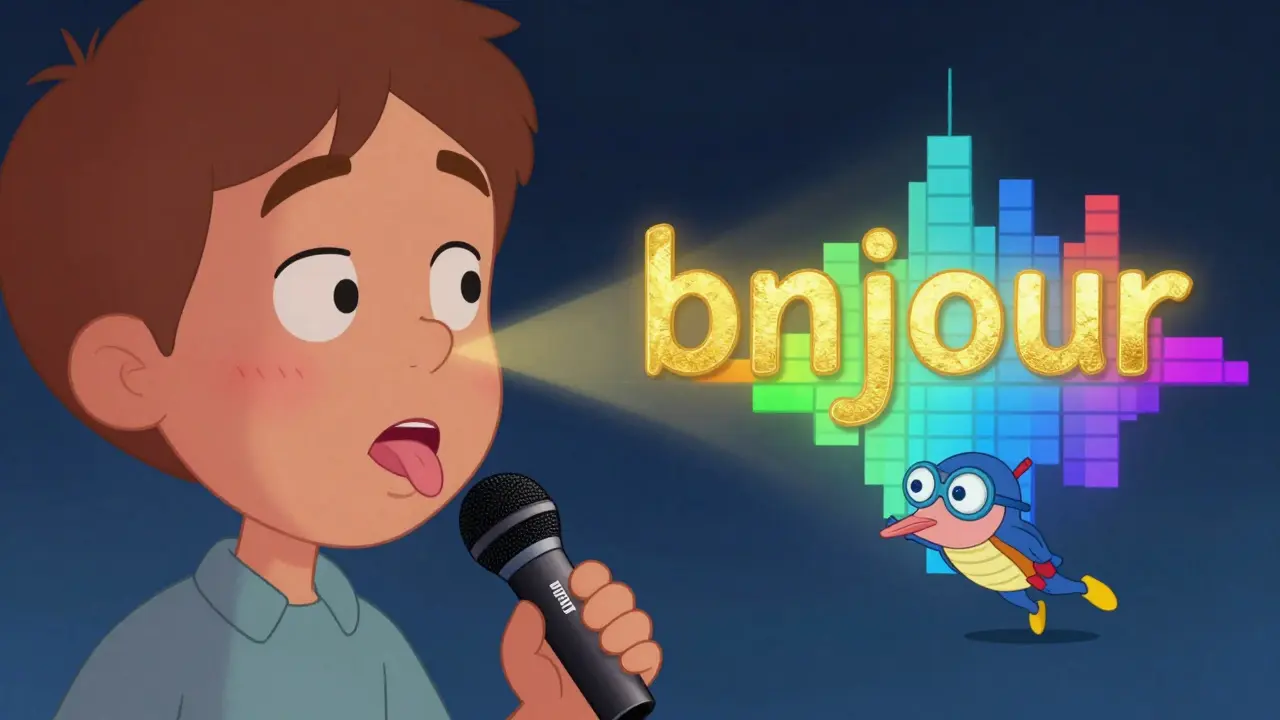
- Focus on one sound. If you’re struggling with French nasal vowels, practice just those for 5 minutes. Repeat "bonjour," "vin," "pain" until the app gives you 95%+ accuracy.
- Record and compare. Some apps let you replay your voice next to a native speaker’s. Listen side by side. Where does your pitch drop? Where do you rush?
- Use visual feedback. Apps like ELSA Speak show you a waveform or spectrogram. If your "r" looks too flat compared to the model, you’re not rolling it right.
One Japanese learner of English told me she kept saying "lice" instead of "rice." The app showed her that her tongue wasn’t curling back enough. She practiced with a spoon under her tongue for a week-yes, really-and now she passes native-level pronunciation tests.
Common Mistakes and How to Avoid Them
People think speech recognition is magic. It’s not. It’s a tool-and like any tool, it can mislead you if you misuse it.
- Over-relying on it. If you only practice with the app, you won’t learn to speak in real conversations. Use it to fix errors, not replace live practice.
- Ignoring context. The app might say "perfect" on "I want to go to the store," but if you say it with a flat tone like a robot, you’ll still sound unnatural. Pay attention to rhythm and emotion, not just individual words.
- Using it in noisy environments. A busy café or subway will ruin accuracy. Don’t waste time practicing there.
- Choosing the wrong accent. Some apps default to American English. If you’re learning British English, switch the accent setting. Same for Spanish-Latin American vs. Castilian.
One student in Mexico City kept getting flagged for "incorrect" pronunciation of "casa." She was saying it with a soft "s," which is normal in Latin America. The app was trained on Spanish from Spain. She switched the accent setting-and suddenly, she was scoring 100%.
Best Apps That Use Speech Recognition for Language Learning
Not all apps are equal. Here’s what actually works in 2026:
| App | Accuracy | Feedback Type | Accent Options | Offline Use |
|---|---|---|---|---|
| Duolingo | High | Green/red score, word-by-word breakdown | US, UK, Spanish (Spain), Mexican | No |
| ELSA Speak | Very High | Phoneme-level analysis, visual waveform | US, UK, Australian, Indian | Yes (premium) |
| Rosetta Stone | High | Real-time tone and pitch tracking | Native to each language | Yes |
| Babbel | Medium | Pass/fail with basic correction | US, UK, German, French | Yes |
| Pimsleur | Medium-High | Delayed feedback after speaking | One native accent per language | Yes |
ELSA Speak leads in precision-it breaks down each phoneme and even tells you if your jaw is too tense. Duolingo is the most accessible for daily use. Rosetta Stone is best if you want immersive, real-life context. Choose based on your goal: quick practice? Duolingo. Deep correction? ELSA.
What to Do When It Doesn’t Work
It happens. You say something clearly, and the app says "Try again." Here’s what to try:
- Restart the app. Sometimes the voice engine glitches.
- Close other apps. Background audio (music, podcasts) can interfere.
- Try a different phrase. Maybe the phrase is too long or complex. Start with 2-3 word sentences.
- Check your language setting. Did you accidentally switch from French to Spanish? It happens.
- Use headphones. They reduce echo and improve input clarity.
One user in Toronto kept failing the "I am learning Spanish" exercise. Turned out her mic was set to "Voice Command" mode, not "Recording." She switched it-and suddenly, everything worked.
Why This Matters Beyond Pronunciation
Speech recognition isn’t just about sounding good. It builds confidence. When you hear the app say "Excellent!" after you’ve practiced for weeks, you start believing you can speak. That mental shift is huge.
It also helps you think in the language. Instead of translating from your native tongue, you’re forming thoughts out loud. That’s how fluency happens.
And it’s not just for learners. Teachers use it to track progress without listening to 30 students individually. Parents use it to help kids practice without speaking the language themselves.
By 2026, speech recognition in language learning isn’t optional anymore. It’s the new standard.
Can speech recognition help me learn a language if I’m completely beginner?
Yes-but not as your only tool. Beginners should start with listening and simple repetition. Speech recognition helps once you can form basic phrases. Trying to speak complex sentences too early will frustrate you. Wait until you can say "My name is..." and "I like..." before relying on voice feedback.
Do I need an internet connection to use speech recognition?
Most apps require internet because they send your voice to cloud servers for analysis. But some, like ELSA Speak and Rosetta Stone, offer offline modes with local processing. These use less accurate models but work without data. If you travel often or have spotty service, choose an app with offline support.
Is speech recognition better than talking to a native speaker?
No-it’s complementary. AI gives instant, repeatable feedback on pronunciation. A native speaker gives you real-time adaptation, cultural context, and emotional nuance. Use AI to fix errors, then practice with people to build fluency. The best learners do both.
Why does the app say I’m wrong when I’m sure I said it right?
It’s usually one of three things: background noise, mic placement, or accent mismatch. Try again in a quiet room with headphones. Check if the app is set to the right regional accent. If it still doesn’t work, record yourself and play it back. You might hear the issue yourself.
Are there free apps with good speech recognition?
Yes. Duolingo’s voice exercises are free and surprisingly accurate. Google’s Language Learning app (formerly Google Translate’s conversation mode) also lets you practice phrases. They’re not as detailed as paid tools like ELSA, but they’re enough to get started. Don’t pay for features you don’t need yet.
Next Steps: How to Start Today
Here’s your 5-minute action plan:
- Download one app: Duolingo or ELSA Speak (both free versions work).
- Put on headphones and find a quiet spot.
- Practice one phrase five times. Don’t move on until you get a "Perfect!"
- Do this every day for 7 days. No exceptions.
- After a week, try speaking to a real person-maybe a language exchange partner on Tandem or HelloTalk.
You don’t need to be perfect. You just need to speak. And with speech recognition, you’ve got a silent coach always ready to help.
Ashley Kuehnel
February 17, 2026 AT 01:13OMG I JUST REALIZED MY LAPTOP MIC WAS COVERED BY A STICKER TOO-NO WONDER I KEPT FAILING DUOLINGO VOICE EXERCISES 😅 I THOUGHT IT WAS MY ACCENT, BUT NOPE. JUST A STICKY MESS. NOW I’M CRUSHING IT WITH A $15 FIFINE MIC. GAME CHANGER.
adam smith
February 17, 2026 AT 07:14This article is overly complicated. Just use the app. It works. Stop overthinking.
Mongezi Mkhwanazi
February 18, 2026 AT 00:29Let me be clear: speech recognition technology, as currently implemented in language apps, is a flawed, statistically biased, and culturally myopic system that prioritizes American and British phonemes while systematically misclassifying regional variations as 'errors'-and this is not accidental. It is the result of corporate data collection practices that favor dominant dialects, marginalizing speakers from the Global South, non-standard dialects, and even working-class urban accents within the U.S. and U.K. I’ve watched learners from Lagos, Mumbai, and Mexico City be told they’re 'wrong' for speaking naturally-and this isn’t pedagogy, it’s linguistic colonialism dressed up as AI. The fact that Rosetta Stone defaults to Castilian Spanish while ignoring Rioplatense or Caribbean variants? That’s not a bug. It’s a feature. And if you’re not questioning this, you’re part of the problem.
Mark Nitka
February 18, 2026 AT 05:14Everyone’s overcomplicating this. Speech recognition isn’t perfect, but it’s the best tool we’ve got for solo learners. If you’re waiting to speak with a native speaker before trying, you’ll never start. Use the app. Fail. Try again. Get that ‘Perfect!’ It builds muscle memory. And yes, the mic matters-but don’t let perfectionism stop you. Just speak. Even if it’s bad. Especially if it’s bad.
Kelley Nelson
February 18, 2026 AT 18:08While the article presents a somewhat enthusiastic view of speech recognition in language acquisition, one must consider the epistemological limitations of algorithmic feedback. The apparatus of phonemic analysis, however sophisticated, cannot account for the hermeneutic dimensions of linguistic expression-the affective, contextual, and performative nuances that constitute authentic communication. To reduce speech to waveform comparisons is to reify language as data, thereby erasing its human essence. One wonders whether this technological fetishization ultimately undermines the very goal of fluency: connection.
Aryan Gupta
February 20, 2026 AT 01:01Did you know? These apps are secretly recording your voice and selling it to Big Tech for voice cloning experiments. I read a whistleblower report last year-Duolingo’s backend sends raw audio to a third-party server in Ireland that trains AI models for deepfake voice scams. And they call it 'improving accuracy'? No. They’re harvesting your accent like a crop. I stopped using voice features entirely. Now I only type. And I don’t trust Bluetooth headphones. Ever. I use wired ones. And I turn off Wi-Fi. You’re being watched. Always.
Fredda Freyer
February 20, 2026 AT 22:20There’s something beautiful about how speech recognition mirrors our own learning process: it doesn’t judge, it just reflects. You say something, and it shows you the gap between intention and output. That’s not just tech-that’s pedagogy. I’ve watched students who were terrified to speak, after weeks of this silent feedback, suddenly laugh and say, 'Wait, I just said that perfectly?' And then they try again. And again. It’s not about being right. It’s about becoming audible to yourself. That’s where fluency begins-not in a classroom, but in the quiet moment when you realize your voice, flawed as it is, belongs in the conversation. I’ve seen it. It’s quiet. It’s powerful. And it’s happening every day.
Gareth Hobbs
February 21, 2026 AT 00:43These apps are all rubbish. I speak English like a proper gentleman, and yet my accent gets flagged as 'incorrect' because it's not American. The Americans think they own the language now? Hah! We had Shakespeare, Dickens, and Austen. You have TikTok and autocorrect. I refuse to use these apps. My accent is British. Period. And if the app doesn't like it? Too bad. I'll keep speaking like a civilised person, not some Silicon Valley bot.
Zelda Breach
February 21, 2026 AT 23:42Anyone who says 'just use a $20 mic' is delusional. The article ignores that most learners use phones, not desktops. And Bluetooth lag? It’s not just 'lag'-it’s 300ms delay that ruins timing. You can’t practice rhythm with that. Also, 'test your voice' button? It’s broken in 70% of app updates. Duolingo’s engine is garbage. I’ve recorded 200+ failed attempts. It thinks 'cat' is 'cap' because it’s trained on Midwestern vowels. This isn’t learning. It’s psychological torture disguised as gamification.
Alan Crierie
February 23, 2026 AT 07:33Love this post! 🙌 I’ve been using ELSA Speak for 6 months now, and the waveform visuals changed everything for me. I used to think I was saying 'thirteen' right… turns out I was puffing out my cheeks like a frog. 😅 Now I use it with my 8-year-old-we turn it into a game. 'Can you make the wave look like a mountain?' He loves it. And yes, headphones help. Also, switch accent settings! I’m British, but I set mine to Australian for fun. It’s not about being 'correct'-it’s about being expressive. Keep speaking. You’ve got this.