Voice Recognition for Language Learning: Setup Guide & Best Practices
 Jul, 7 2026
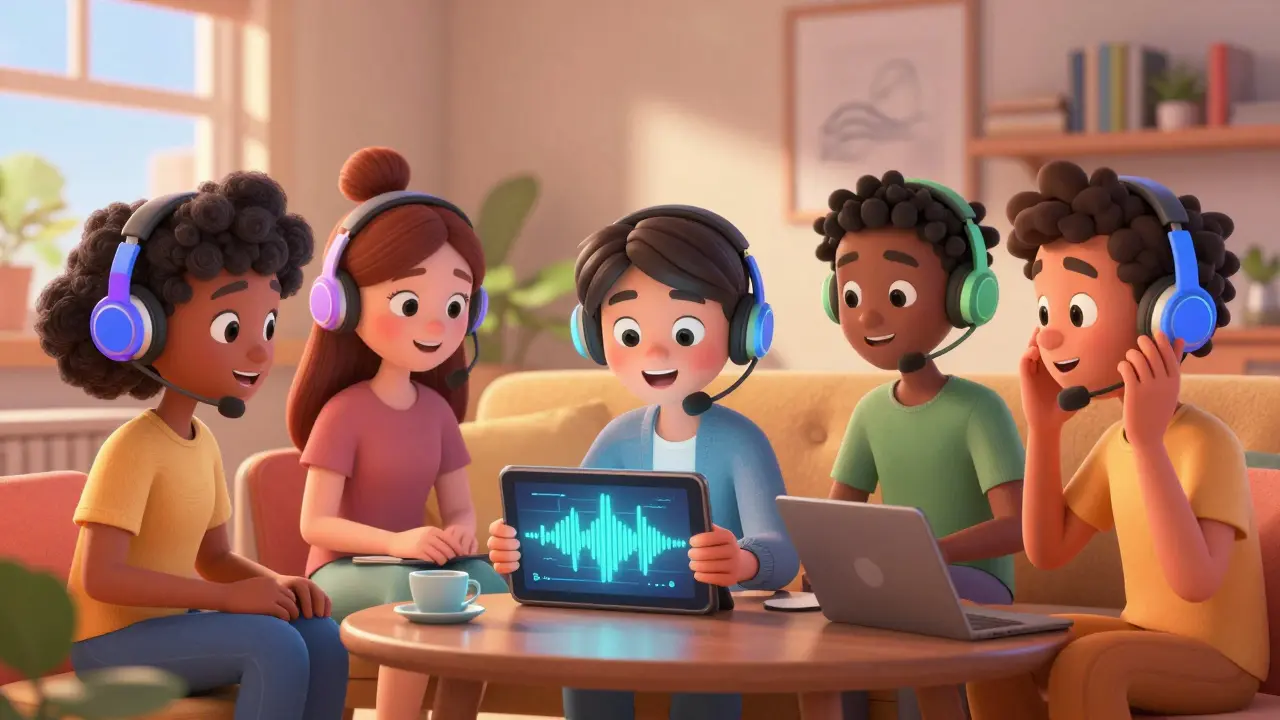
Imagine trying to learn a new language by only reading text. You might know the grammar rules perfectly, but when you open your mouth, the sounds come out wrong. That is exactly what happens in traditional online courses that ignore speaking practice. Voice recognition is technology that converts spoken audio into digital data or commands, allowing learners to practice pronunciation and receive instant feedback without a human tutor present. For anyone serious about mastering a new tongue, setting up this technology correctly is no longer optional-it is essential.
You do not need a fancy studio microphone or expensive software to get started. However, getting the basics right makes the difference between frustrating errors and genuine progress. This guide covers how to set up your environment, choose the right tools, and use best practices to actually improve your accent and fluency.
Why Voice Tech Changes the Game for Learners
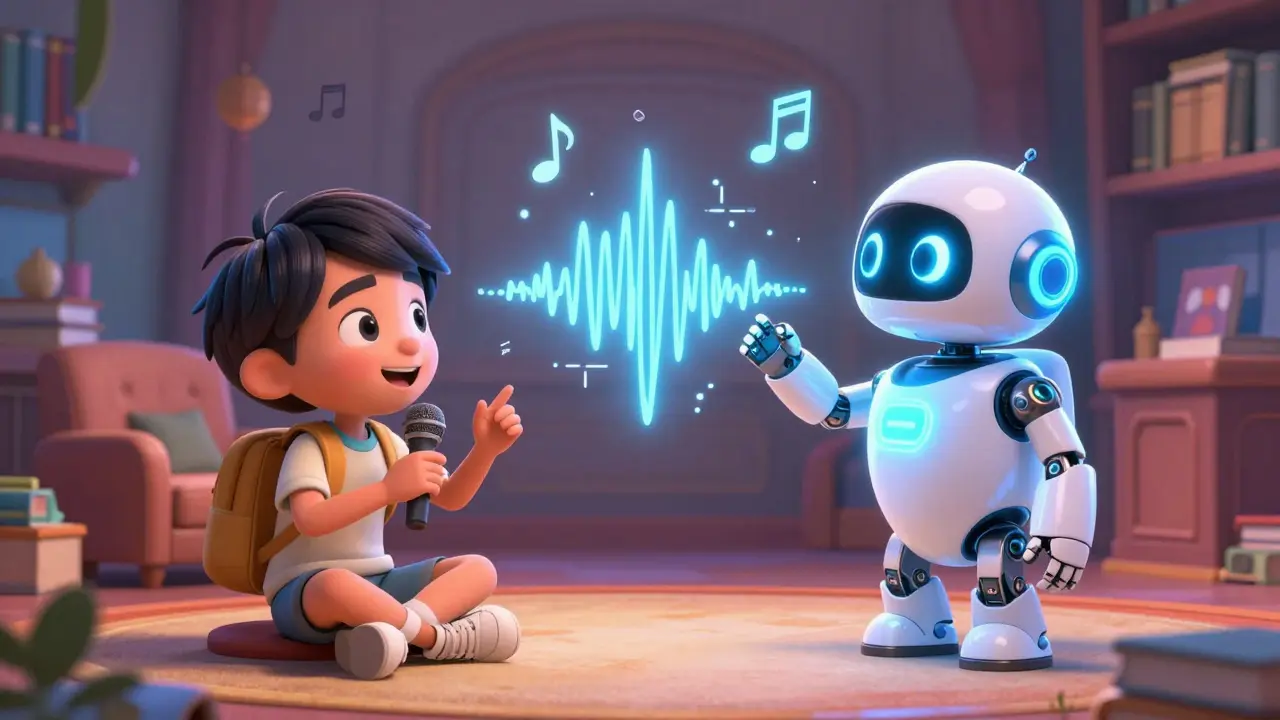
Most people think of voice assistants like Siri or Alexa as conveniences. In language learning, they act as tireless coaches. When you speak to an app, it analyzes your phonemes-the smallest units of sound in a language-and compares them to native speaker models. This process provides immediate correction, which is crucial because bad habits form quickly if left unchecked.
Research from institutions like MIT has shown that interactive speech training leads to better retention than passive listening. The key here is active recall. When you force yourself to produce the sound, your brain creates stronger neural pathways than when you just hear it. Voice recognition bridges the gap between knowing a word and being able to say it confidently in real life.
Hardware Setup: What You Actually Need
Before downloading any apps, look at your physical setup. Many learners fail because their hardware introduces noise or distortion that confuses the software. Here is what matters:
- Microphone Quality: Your laptop’s built-in mic is often enough for casual practice, but it picks up keyboard clacking and room echo. A dedicated USB headset with a boom mic (the kind that sits near your mouth) costs around $30-$50 and drastically improves clarity. Brands like Logitech or Jabra offer reliable entry-level options.
- Environment: Sound travels. If you are practicing in a tiled bathroom or a large empty room, the reverb will mess up the accuracy. Aim for a small, carpeted room with curtains or soft furniture to absorb excess sound. Turn off fans, air conditioners, and close windows to block street noise.
- Connection Stability: Most advanced voice recognition engines run in the cloud, meaning your audio is sent to a server for processing. A stable Wi-Fi connection (5GHz band preferred) prevents latency issues where the app seems to "freeze" while listening to you.
Choosing the Right Software Platform
Not all language apps handle voice equally well. Some simply check if you said the right word, ignoring your accent entirely. Others use deep learning models to analyze pitch, stress, and intonation. Look for platforms that explicitly mention "pronunciation scoring" or "phoneme-level feedback."
| App Name | Feedback Type | Real-Time Correction | Best For |
|---|---|---|---|
| Speechling | Human + AI Coach | No (Async) | Advanced accent refinement |
| Babbel | AI Pronunciation Score | Yes | Beginner conversational practice |
| Pimsleur | Audio-Only Recall | Yes | Auditory learners and travel prep |
| Duolingo | Basic Word Match | Limited | Casual vocabulary building |
If you are starting from zero, apps like Babbel or Rosetta Stone provide structured lessons with integrated voice checks. For more advanced users who want to fine-tune their accent, specialized tools like Speechling or ELSA Speak offer deeper analysis of specific sounds, such as the rolled 'R' in Spanish or the thorn 'Þ' in Icelandic.
Calibration and Initial Configuration
Once you have your hardware and software ready, calibration is the step most people skip. It is vital. Every voice is unique; your vocal cords, mouth shape, and natural speaking rate differ from the average model the software was trained on.
- Run the Calibration Test: Most professional apps ask you to read a short paragraph at the start. Do this in a quiet room. Speak naturally-do not exaggerate or whisper. The system needs a baseline of your "normal" voice.
- Adjust Sensitivity Settings: If the app keeps cutting you off, lower the sensitivity. If it fails to recognize clear words, raise it. Find the sweet spot where it listens until you pause for about one second.
- Set Your Proficiency Level: Be honest here. If you select "Intermediate" but are a beginner, the engine might expect complex sentence structures and flag simple phrases as errors. Start low and move up as you gain confidence.
Best Practices for Effective Practice Sessions
Having the tech is half the battle. How you use it determines your results. Treat voice practice like physical exercise: consistency beats intensity.
Focus on Chunks, Not Just Words
Isolated words are easy. Context is hard. Instead of just saying "apple," practice saying "I would like a red apple, please." Voice recognition engines are better at evaluating rhythm and flow in full sentences. This helps you master connected speech, where words blend together in natural conversation.
Record and Compare
Use the playback feature. Listen to the native speaker’s example, then listen to yours. Note the differences in pitch. Are you rising at the end of a statement? Are you stressing the wrong syllable? Visual waveforms, if available, can show you where your energy peaks compared to the model.
Slow Down to Speed Up
It is tempting to rush through exercises to hit your daily streak. Slow down. Enunciate clearly. Accurate slow speech builds muscle memory faster than sloppy fast speech. Once the muscles in your mouth remember the correct position, speed comes naturally.

Troubleshooting Common Issues
Even with a perfect setup, glitches happen. Here is how to fix the most frequent problems:
- "It didn't hear me": Check your device permissions. Ensure the app has access to your microphone in your OS settings (iOS/Android/Windows/Mac). Also, verify you are not muted in your system mixer.
- Incorrect Transcription: If the app writes down the wrong word, it usually means background noise is interfering. Move closer to the mic or use headphones with a built-in mic to isolate your voice.
- Accent Bias: Some engines struggle with non-native accents initially. If you feel unfairly penalized, try switching to a "learner mode" if the app offers it, or switch to an app known for higher tolerance during early stages, like Duolingo, before moving to stricter tools.
The Future of Voice in Education
We are moving toward real-time, bidirectional conversation bots. Imagine chatting with an AI character that responds instantly to your spoken input, correcting your grammar and tone on the fly. Companies are already integrating Large Language Models (LLMs) with speech-to-text engines to create these dynamic tutors. While we wait for that technology to become mainstream, mastering current voice recognition tools gives you a massive head start. You are not just learning a language; you are training your ears and mouth to work together, a skill that no textbook can teach alone.
Do I need a special microphone for language learning apps?
You do not strictly need a special microphone, but a standard USB headset with a boom mic significantly improves accuracy. Built-in laptop mics often pick up ambient noise, leading to misinterpretations. A dedicated mic isolates your voice, helping the software distinguish phonemes more clearly.
Which language learning app has the best voice recognition?
For detailed pronunciation feedback, ELSA Speak and Speechling are top choices due to their phoneme-level analysis. For general conversational practice, Babbel and Pimsleur integrate voice exercises effectively into their lesson plans. Duolingo is good for beginners but lacks deep accent correction.
How does voice recognition help with accent reduction?
Voice recognition software compares your speech patterns against native speaker models. It identifies specific deviations in pitch, stress, and vowel length. By providing immediate visual or auditory feedback, it allows you to adjust your mouth positioning and breathing in real-time, accelerating muscle memory development.
Can voice recognition replace a human tutor?
No, it cannot fully replace a human tutor. While AI is excellent for drilling pronunciation and basic grammar, humans provide cultural context, emotional nuance, and adaptive teaching strategies. Use voice tech for daily practice and drills, and reserve human tutors for conversation practice and complex query resolution.
Why is my voice recognition not working on my phone?
Check your app's microphone permissions in your phone's settings. Ensure you are using a stable internet connection, as many apps process audio in the cloud. Additionally, update the app to the latest version, as older versions may have bugs affecting audio input compatibility.