Best LMS for K-12 Education: Features, Pros, Cons, and Recommendations
 Feb, 8 2026
Choosing the right learning management system (LMS) for K-12 schools isn’t just about picking the prettiest interface. It’s about finding a tool that actually works for teachers, students, and administrators-without adding more stress to an already overloaded system. With so many options on the market, it’s easy to get lost in flashy demos and marketing buzzwords. But real success comes down to a few core things: ease of use, accessibility, integration with existing tools, and whether it actually helps kids learn-not just track their progress.
What Makes a Good LMS for K-12?
A great K-12 LMS doesn’t try to do everything. It focuses on what matters most: helping teachers assign work, track understanding, and give feedback. It needs to be simple enough for a third grader to log in, secure enough to protect student data, and flexible enough to handle everything from a kindergarten reading log to a high school physics project.
Here’s what actually works in real classrooms:
- Single sign-on (SSO) with Google or Microsoft accounts-no extra passwords for kids or teachers.
- Mobile-friendly design so students can access assignments on tablets or phones.
- Accessibility features like screen reader support, text-to-speech, and captioning for videos.
- Simple grading tools that don’t require a PhD in data entry.
- Parent access so families can see assignments, due dates, and progress without begging the teacher for updates.
Many platforms fail because they’re built for universities or corporate training. K-12 needs something built for attention spans, developmental stages, and the messy reality of a classroom with 25 different learning needs.
Top 5 LMS Platforms for K-12 in 2026
After reviewing dozens of platforms and talking to district tech coordinators, curriculum specialists, and classroom teachers across Arizona, Texas, and Ohio, here are the five that consistently deliver results.
1. Google Classroom
Google Classroom is a free, web-based platform that integrates directly with Google Workspace for Education. Also known as Google Class, it was first launched in 2014 and has since become the default LMS in over 70% of U.S. public schools.
Pros:
- Zero cost for schools using Google Workspace
- Seamless integration with Docs, Drive, Meet, and Forms
- Simple for students of all ages to use
- Automatic grading for multiple-choice quizzes
- Parent email summaries of missing work
Cons:
- Limited customization-no quiz banks or lesson templates
- Weak analytics-teachers can’t easily spot learning gaps
- No built-in discussion forums
- Depends entirely on Google’s uptime
Best for: Elementary and middle schools that want zero friction and already use Google tools. Not ideal for high school teachers who need advanced assignments or rubrics.
2. Canvas by Instructure
Canvas is a scalable, cloud-based LMS designed for K-12 and higher ed. It’s used by over 20 million students worldwide, including large districts like Chicago Public Schools and Los Angeles Unified.
Pros:
- Powerful assignment builder with rubrics, peer review, and plagiarism checks
- Mobile app works offline-students can download assignments
- Customizable dashboards for teachers, students, and parents
- Strong analytics dashboard shows trends in student performance
- Integrates with Turnitin, Zoom, and Clever
Cons:
- Steep learning curve for new teachers
- Costs $1,200 per school per year (minimum)
- Parent portal requires setup by district IT
- Overwhelming for younger students without teacher guidance
Best for: Middle and high schools with dedicated tech support. Excellent for teachers who want to build complex projects or track long-term progress.
3. Schoology
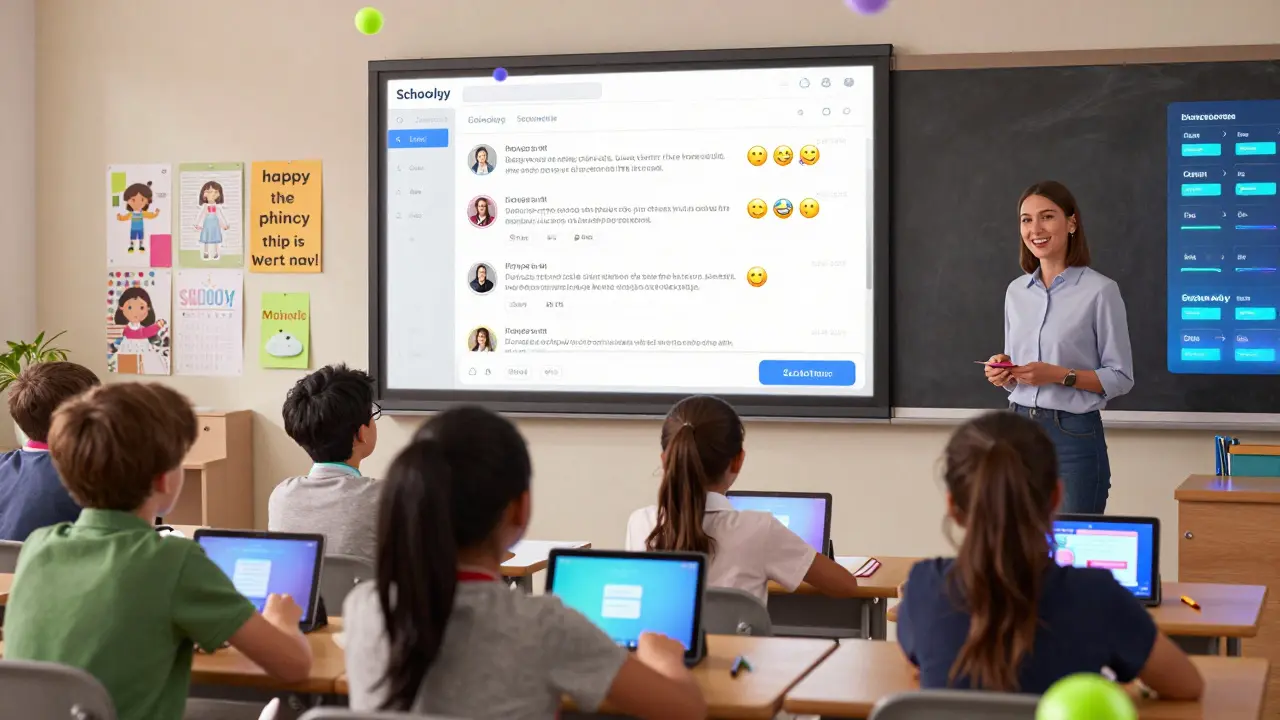
Schoology is an LMS built specifically for K-12 with a social media-like interface. It’s used by over 12 million users, including districts like Miami-Dade and Boston Public Schools.
Pros:
- Intuitive, familiar design-students treat it like Instagram or TikTok
- Built-in discussion boards, polls, and group collaboration tools
- Strong parent communication features
- Integrates with Google, Microsoft, and Edpuzzle
- Free tier available for small schools
Cons:
- Mobile app crashes on older devices
- Grading tools are clunky compared to Canvas
- Can feel too "social"-distractions for younger kids
- Customer support response times vary
Best for: Schools that want student engagement to feel natural. Great for project-based learning and student voice.
4. Microsoft Teams for Education
Microsoft Teams for Education is a free LMS built into Microsoft 365, designed to replace traditional classroom tools. It’s now the go-to platform in over 30% of schools using Microsoft licenses.
Pros:
- Free for schools with Microsoft 365 licenses
- Deep integration with OneNote Class Notebooks, Forms, and Stream
- Offline access to assignments and files
- Strong accessibility features for students with disabilities
- Parent view of class activities via email
Cons:
- Interface feels cluttered and confusing for young students
- Grading tools are underdeveloped
- Requires Windows or Edge browser for full features
- Not ideal for schools without existing Microsoft infrastructure
Best for: Districts already using Microsoft 365. Strong for special education and hybrid learning, but not as intuitive as Google Classroom for beginners.
5. Seesaw
Seesaw is a digital portfolio LMS designed for K-5, with a focus on student creativity and parent engagement. Used by over 35 million students and teachers, it’s especially popular in early childhood and elementary settings.
Pros:
- Super simple for young kids-just tap, record, or draw
- Parents get real-time updates and can comment on student work
- Video, audio, and drawing tools built in
- Free version covers most elementary needs
- Strong SEL (social-emotional learning) features
Cons:
- Not designed for middle or high school
- Limited grading and assessment tools
- No quiz builder or automated grading
- Storage limits on free plan
Best for: Kindergarten through 5th grade. If your students are still learning to type, this is the only LMS that truly speaks their language.
Comparison Table: Key Features Side by Side
| Feature | Google Classroom | Canvas | Schoology | Microsoft Teams | Seesaw |
|---|---|---|---|---|---|
| Cost | Free | $1,200+/year | Free tier; paid plans from $299/year | Free (with Microsoft 365) | Free tier; paid from $120/year |
| Best Age Group | K-8 | 6-12 | 3-12 | 6-12 | K-5 |
| Parent Access | Email summaries | Dedicated portal | Dedicated portal | Email + app | Real-time app updates |
| Mobile App Quality | Good | Excellent | Fair | Good | Excellent |
| Assignment Flexibility | Basic | Advanced | Advanced | Basic | Creative (video/drawing) |
| Analytics | Minimal | Robust | Good | Basic | Minimal |
| Accessibility | Good | Excellent | Good | Excellent | Good |
What to Avoid When Choosing an LMS
Here are three common mistakes districts make:
- Buying based on vendor demos-Sales reps show polished versions with 20 students. Real classrooms have 30 kids, broken tablets, and Wi-Fi that drops every 10 minutes.
- Ignoring teacher input-If teachers hate using it, it won’t get used. Always pilot with 3-5 teachers before district-wide rollout.
- Choosing for tech, not learning-Don’t pick the platform with the most features. Pick the one that helps kids understand fractions, write essays, or solve math problems. If it doesn’t improve learning, it’s just another app collecting dust.
Recommendations by School Type
Here’s what works best depending on your school’s size and grade range:
- Elementary schools (K-5): Start with Seesaw. It’s designed for this age group. If you need more structure, pair it with Google Classroom for assignments.
- Middle schools (6-8): Schoology or Google Classroom both work well. Schoology wins if you want student collaboration. Google wins if you want simplicity.
- High schools (9-12): Canvas is the clear leader. It handles complex projects, rubrics, and grading better than any other platform.
- Small rural districts: Google Classroom or Microsoft Teams-both free and work offline. Avoid expensive platforms with heavy tech requirements.
- Special education programs: Microsoft Teams has the best accessibility tools. Canvas also supports screen readers and alternative input methods well.
Final Thoughts
The best LMS isn’t the one with the most bells and whistles. It’s the one teachers actually use, students can navigate without help, and parents can understand. For most schools, the answer lies between Google Classroom and Canvas. Google if you need simplicity. Canvas if you need depth. Seesaw if your students are still learning to hold a pencil. Schoology if you want engagement to feel like a game. Teams if you’re already in the Microsoft ecosystem.
Don’t overthink it. Test two options. Ask teachers. Watch students. See what sticks. The right platform doesn’t change your teaching-it just makes it easier.
What is the cheapest LMS for K-12 schools?
Google Classroom and Microsoft Teams for Education are both completely free if your school already uses Google Workspace or Microsoft 365. Seesaw also has a robust free plan for K-5. Canvas and Schoology require paid subscriptions, starting at $299-$1,200 per year, so they’re not ideal for tight budgets.
Can parents use an LMS without a login?
Yes. Google Classroom sends weekly email summaries of missing assignments. Seesaw sends real-time notifications directly to parents’ phones. Schoology and Canvas offer parent portals, but those require district setup. Microsoft Teams lets parents view class activities via email without logging in.
Do LMS platforms work offline?
Canvas and Microsoft Teams allow students to download assignments and view them offline. Google Classroom requires internet for most features. Seesaw lets students record videos or draw offline and sync later. Always check if your LMS supports offline use-especially important in rural or low-bandwidth areas.
Which LMS is best for students with disabilities?
Microsoft Teams leads in accessibility, with full screen reader support, keyboard navigation, alt text for images, and live captions. Canvas also meets WCAG 2.1 AA standards and supports assistive technologies. Google Classroom and Seesaw have decent accessibility but aren’t as comprehensive. Always test with your school’s assistive tech team before choosing.
How long does it take to train teachers to use an LMS?
Google Classroom and Seesaw take less than 2 hours for most teachers to get comfortable. Canvas and Schoology can take 5-10 hours of training, especially for grading and analytics. Microsoft Teams is tricky because it’s designed for business, not education-expect 6-8 hours of support. Always plan for at least 3 weeks of training before full rollout.
Amanda Ablan
February 9, 2026 AT 18:25I've been using Google Classroom for my 4th grade class for three years now. Honestly? It's not perfect, but it's reliable. Kids log in without help, parents get those weekly email summaries, and I don't have to spend my lunch break teaching tech tutorials. The lack of quiz banks is annoying, but I just use Forms instead. Simple wins every time in elementary school.
Yashwanth Gouravajjula
February 10, 2026 AT 01:55Canvas is king in India. We use it in urban schools. Parents love the portal. Teachers? They complain about the learning curve. But once they get past week one? It's the only one that tracks progress across semesters. Worth the training.
Kevin Hagerty
February 10, 2026 AT 14:02Of course Google Classroom is #1. Because every school has a tech team that actually cares about pedagogy. Meanwhile, my district bought Schoology because the sales rep had a nice smile. Now we have 17 teachers who still use paper. And three kids who think 'submit' is a dance move.
Ashton Strong
February 12, 2026 AT 03:19As an educational technologist with over 15 years in K-12 implementation, I must emphasize that the selection of a Learning Management System must be anchored in instructional outcomes, not vendor aesthetics. The data presented here is robust, and I concur wholeheartedly with the recommendation to prioritize teacher piloting and student usability over feature density. A platform is merely a vessel; the curriculum is the cargo.
Steven Hanton
February 13, 2026 AT 20:42It's interesting how the article focuses so much on technical specs, but the real issue is teacher buy-in. I've seen districts spend $50,000 on fancy LMS platforms that no one uses because the teachers weren't involved in the decision. The ones that work? They’re the ones where the 5th grade teacher had a say. It’s not about the tool. It’s about trust.
Pamela Tanner
February 15, 2026 AT 12:15Seesaw is magical for kindergarten. My daughter’s class uses it. She draws a picture of her dog, records her voice saying ‘this is my dog, his name is Max’, and her mom gets a notification. No login. No confusion. Just joy. That’s what education should look like - not spreadsheets, not analytics dashboards, just a kid sharing something real.
Kristina Kalolo
February 16, 2026 AT 04:07Canvas’s analytics are powerful, but I’ve noticed that teachers who don’t use them regularly end up ignoring them entirely. The data exists, but it doesn’t translate into better instruction unless there’s dedicated time for analysis. Most schools don’t provide that. So the platform’s strength becomes a liability.
ravi kumar
February 17, 2026 AT 23:52Google Classroom works fine in rural India. We have no budget, no tech staff. But every kid has a Google account. We use it for assignments, announcements, and even live video check-ins on slow days. It’s not fancy, but it’s there when we need it. Sometimes, that’s enough.
Megan Blakeman
February 19, 2026 AT 07:09Oh my gosh, I love this post!! Seriously, I’ve been trying to convince my district to switch from Schoology to Seesaw for our K-2 kids, and everyone keeps saying ‘but it’s not scalable’ - but like… do we really need scalability if the kids are crying because the login screen is too confusing? I just want them to feel like learning is fun, not a tech test!!
Akhil Bellam
February 21, 2026 AT 05:04How can anyone seriously recommend Google Classroom in 2026? It’s a glorified folder system with zero pedagogical depth. Canvas? At least it has rubrics. Schoology? At least it has discussion threads. But Google? It’s what you use when you’ve given up on teaching and just want to collect homework like a digital janitor. Pathetic.
Amber Swartz
February 23, 2026 AT 02:10I CAN’T BELIEVE YOU LEFT OUT EASEL BY TESSEL!! I’M A 3RD GRADE TEACHER AND I’VE BEEN USING IT FOR 5 YEARS. IT’S THE ONLY PLATFORM THAT LETS KIDS CREATE INTERACTIVE POSTERS. AND YOU’RE TALKING ABOUT CANVAS LIKE IT’S THE HOLY GRAIL?? I’M FURIOUS. THIS IS A TRAVESTY.
Zoe Hill
February 23, 2026 AT 09:08I just wanted to say thank you for writing this. My son’s school switched to Microsoft Teams last year and honestly? It’s been a disaster. He’s 8 and he can’t find his assignments. But then we tried Seesaw for his art class and he started bringing home videos of him reading aloud. That’s the moment I knew - it’s not about the tech. It’s about the connection.
Albert Navat
February 24, 2026 AT 01:47Let’s cut through the noise: LMS is a misnomer. It’s not a Learning Management System - it’s a Compliance Management System. Schools don’t care if kids learn. They care if they can prove they’re ‘delivering standards.’ That’s why Canvas dominates - it’s a compliance engine with bells. The real innovation? The ones that let kids create, not just submit.
King Medoo
February 25, 2026 AT 06:07Every time I see someone say "Google Classroom is good for elementary," I cringe. 🤢 It’s the digital equivalent of a paper worksheet. No structure. No feedback loop. No way to differentiate. And yet, 70% of schools use it? That’s not adoption - that’s resignation. Canvas has the tools. Schoology has the engagement. But no one wants to train. So we settle for a broken system and call it "convenient." 🙃