Caption and Transcript Requirements for Course Videos: A Complete Accessibility Guide
 Aug, 12 2026
You have spent weeks filming, editing, and polishing your latest lecture. The audio is crisp, the visuals are sharp, and the content is gold. But if you skip one small step-adding accurate captions and a full transcript-you might as well be broadcasting to an empty room. For millions of learners, silence means exclusion.
Accessible learning isn't just a nice-to-have feature or a checkbox for legal compliance. It is the difference between a student understanding complex material and giving up entirely. Whether you are building a massive open online course (MOOC) or training employees internally, getting video accessibility right requires more than hitting the auto-generate button. You need precision, context, and a strategy that covers every ear and eye in your audience.
The Core Difference Between Captions and Transcripts
It is easy to mix these two terms up, but they serve completely different functions in the learning ecosystem. Think of them as distinct tools in your accessibility toolkit.
Captions are synchronized text overlays that appear on the video screen. They translate spoken dialogue into text in real-time. Their primary job is to help deaf and hard-of-hearing learners follow along. However, they also assist non-native speakers who learn better by reading while listening, and anyone watching in a noisy environment like a subway or a busy office.
Transcripts, on the other hand, are static documents. They contain the full spoken text of the video, usually posted below the player or linked separately. Transcripts allow users to search for specific keywords within a lesson, skim for key points without watching the entire clip, and use screen readers to access the content entirely through audio synthesis. If captions are the visual aid during playback, transcripts are the searchable reference guide afterward.
| Feature | Captions | Transcripts |
|---|---|---|
| Format | Synchronized text overlay (.srt, .vtt) | Static text document (.txt, .pdf, HTML) |
| Primary Audience | Deaf/Hard of Hearing, Non-native speakers | Screen reader users, Skimmers, SEO crawlers |
| Functionality | Real-time synchronization with audio | Searchable, skimmable, offline access |
| Content Scope | Dialogue + Key sound effects | Full dialogue + Contextual descriptions |
Technical Standards: WCAG and Section 508
To ensure your courses meet global expectations, you need to align with established frameworks. The two biggest names here are the Web Content Accessibility Guidelines (WCAG) and Section 508 of the Rehabilitation Act.
WCAG 2.1, specifically Level AA, is the international gold standard. Under Success Criterion 1.2.2, captions are required for all prerecorded audio content in synchronized media. This means if there is talking in your video, there must be captions. For live streams, Success Criterion 1.2.4 requires captions for all live audio content, though post-production fixes are often accepted for educational recordings made after 2023.
If you are operating in the United States, particularly in higher education or government sectors, Section 508 compliance is mandatory. These rules mirror WCAG closely but carry the weight of federal law. Failure to comply can lead to lawsuits under the Americans with Disabilities Act (ADA). Courts have increasingly ruled that digital barriers, including inaccessible video players, constitute discrimination.
Beyond the legalities, there is a technical standard called SRT (SubRip Text) and VTT (WebVTT). These are the file formats most Learning Management Systems (LMS) like Moodle, Canvas, or Blackboard expect. When uploading your video, ensure your caption file uses the correct timecodes. A mismatch of even half a second can throw off a learner trying to connect words to facial expressions or diagrams.
Writing Effective Captions: Beyond Auto-Generate
Most platforms offer automatic captioning powered by AI. While this is a fantastic starting point, it is rarely perfect. AI struggles with accents, technical jargon, overlapping speech, and background noise. Relying solely on auto-captions is like publishing a book with typos-it erodes trust and confuses learners.
Here is how to write captions that actually work:
- Sync accuracy: Each block of text should stay on screen long enough to be read comfortably. A general rule is no more than two lines per caption block, and never more than 42 characters per line. If the speaker talks fast, break the sentence into multiple timed blocks rather than cramming it into one.
- Identify speakers: In interviews or panel discussions, label who is speaking. Use brackets like [Professor Smith] or [Student]. Without this, viewers get lost in a wall of text.
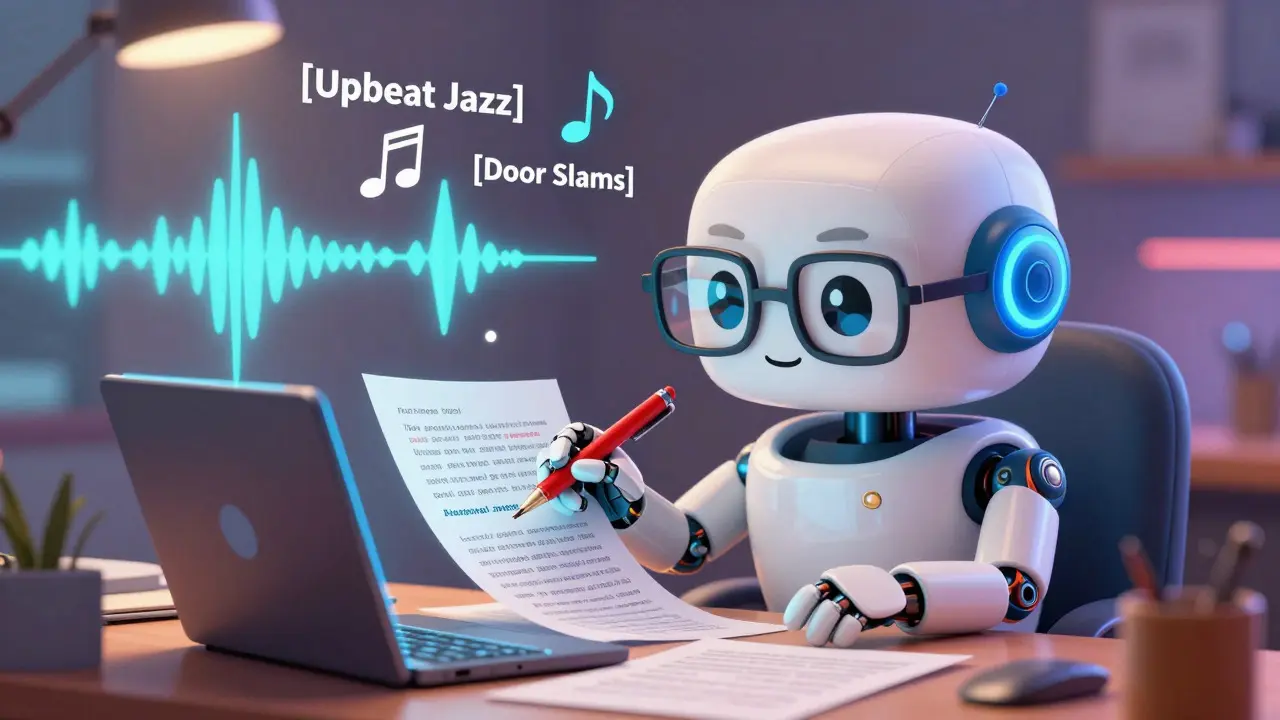
- Include non-speech cues: This is where many creators fail. If there is significant music, laughter, or door slamming, indicate it. Use brackets: [Upbeat jazz music plays], [Door slams], [Laughter]. These cues provide emotional context and narrative flow for deaf learners.
- Punctuation matters: Capitalize proper nouns, use commas for pauses, and periods for complete thoughts. Poor punctuation forces the brain to work harder to parse meaning, increasing cognitive load.
Always review auto-generated captions manually. Check for homophones-words that sound the same but mean different things. "Their," "there," and "they're" will confuse any spell-checker. Technical terms like "API," "HTTP," or specific chemical formulas need manual correction to ensure accuracy.
Crafting Comprehensive Transcripts
A transcript is not just a copy-paste of the captions. It is a standalone document that provides full context. Think of it as a script that includes stage directions.
Your transcript should include:
- Speaker identification: Clearly state who is talking at the beginning of each segment.
- Visual descriptions: Describe what is happening on screen. If the instructor points to a graph showing a 20% increase, the transcript should say: [Instructor points to bar chart showing 20% growth]. This helps blind users understand the visual data being referenced.
- Audio cues: Similar to captions, note significant sounds. [Sound of keyboard typing], [Bell rings].
- Structure: Break the text into paragraphs based on topics, not just arbitrary line breaks. Use headings if the video has distinct sections.
For example, if your video shows a coding tutorial, the transcript shouldn't just list the code spoken aloud. It should describe the visual layout: "The editor window displays Python code on the left and the terminal output on the right." This level of detail transforms a simple text dump into a rich, accessible resource.
Common Pitfalls to Avoid
Even well-meaning creators make mistakes that undermine accessibility. Here are the most frequent errors:
- Over-reliance on AI: As mentioned, AI makes errors. Always do a human review. Aim for 99% accuracy, not 90%.
- Ignoring closed captions (CC):** Ensure your video player allows users to toggle captions on and off. Forced-on captions can annoy hearing users who prefer audio-only, especially if the text obscures important visuals.
- Poor contrast:** If you are burning captions directly into the video (open captions), ensure the text color contrasts sharply with the background. White text with a black outline or semi-transparent black box behind the text is standard practice.
- Missing metadata:** Make sure your transcript file is named descriptively, such as "Module_3_Cellular_Biology_Transcript.pdf," rather than "Doc1.pdf." This helps screen reader users navigate their downloads folder.
Implementing Accessibility in Your LMS
How you deliver the content matters as much as the content itself. Most modern Learning Management Systems support accessibility features out of the box, but you need to configure them correctly.
When uploading videos to platforms like Canvas, Moodle, or Teachable, look for the "Accessibility" or "Media Settings" tab. Upload your .srt or .vtt caption file here. Do not rely on the platform to generate captions unless you plan to edit them immediately. Link your transcript in the description area or as a separate downloadable resource. Some LMSs allow you to embed the transcript directly below the video player using a collapsible accordion menu, which keeps the interface clean while providing easy access.
Test your setup. Use a screen reader like NVDA (free for Windows) or VoiceOver (built into Mac/iOS) to navigate your course page. Can the screen reader find the transcript? Can it announce that captions are available? If the answer is no, your implementation needs tweaking.
The Business Case for Accessible Videos
Beyond compliance and ethics, accessible videos improve engagement for everyone. Studies show that students who use captions retain information better, regardless of their hearing ability. Captions help focus attention, reduce distractions, and support vocabulary acquisition for language learners.
From an SEO perspective, transcripts provide crawlable text for search engines. Google cannot "watch" your video, but it can read your transcript. This improves your course's visibility in search results, driving more organic traffic to your learning platform. In a crowded market, accessibility is a competitive advantage that signals quality and inclusivity.
Finally, consider the lifetime value of your content. An accessible video can be repurposed into blog posts, social media snippets, and email newsletters. The transcript becomes a ready-made draft for written content. Investing time in high-quality captions and transcripts pays dividends across multiple channels.
Are auto-generated captions good enough for online courses?
Auto-generated captions are a great starting point but are rarely perfect. They often struggle with technical jargon, accents, and homophones. For professional courses, always manually review and edit auto-captions to ensure at least 99% accuracy. Uncorrected errors can confuse learners and damage your credibility.
What is the difference between closed captions and subtitles?
Subtitles assume the viewer can hear the audio but doesn't understand the language; they typically only include dialogue. Closed captions (CC) are designed for deaf or hard-of-hearing viewers and include dialogue plus descriptive audio cues like [music playing] or [door slams]. For accessibility, always use closed captions.
Do I need a transcript if I already have captions?
Yes. Captions are tied to the video timeline and require watching the video. Transcripts are static, searchable, and skimmable. They allow users to find specific information quickly and are essential for screen reader compatibility. Both are required for full WCAG compliance.
Which file format should I use for captions?
The most widely supported formats are SRT (SubRip Text) and VTT (WebVTT). SRT is simpler and works with almost all video players and LMS platforms. VTT offers more advanced styling options. Check your specific Learning Management System documentation, but SRT is generally the safest choice for broad compatibility.
How do I make my video player accessible?
Ensure your video player supports keyboard navigation (using arrow keys to play/pause and volume controls). It should clearly label buttons for screen readers and allow users to toggle captions on and off. Avoid custom-built players unless they are rigorously tested for accessibility; sticking to standard embeds from YouTube, Vimeo, or your LMS provider is often safer.