Internationalization Testing for LMS and Mobile Apps: What You Must Check Before Going Global
 Dec, 10 2025
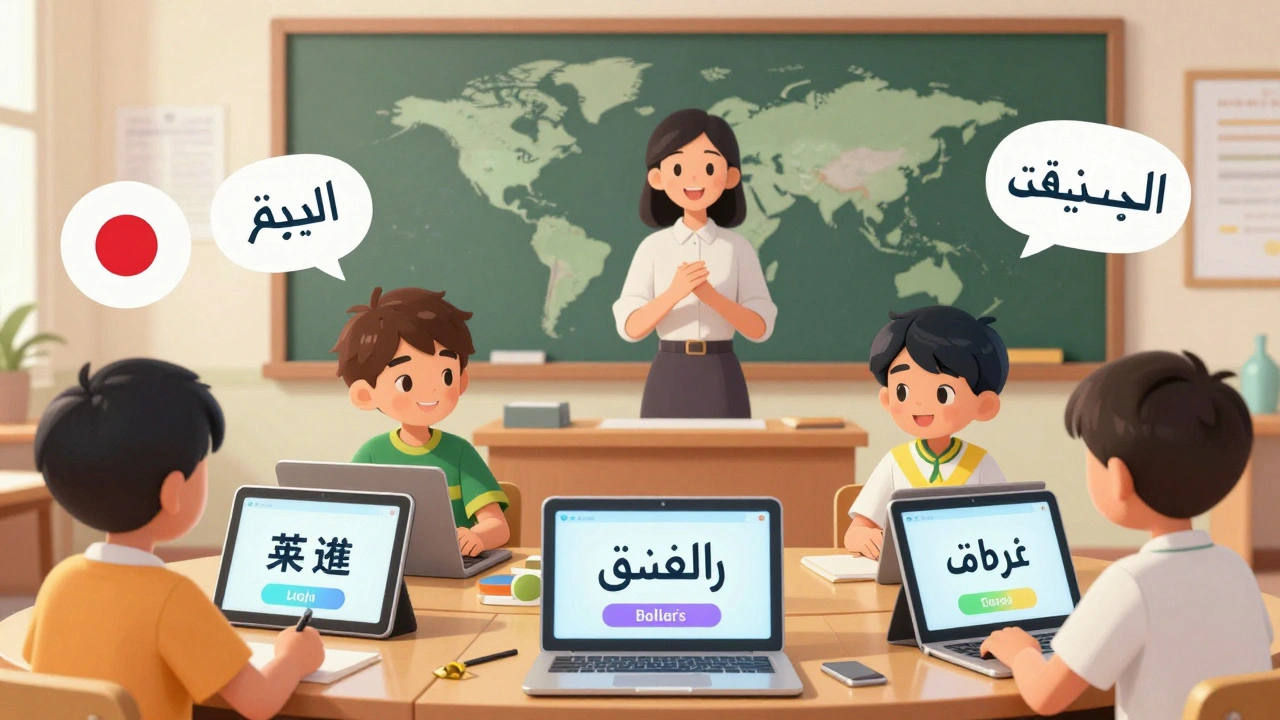
When you build a learning management system (LMS) or a mobile app for education, you might think getting the content right in English is enough. But if you want learners from Japan, Brazil, or Egypt to use your platform without frustration, you’re missing half the battle. Internationalization testing isn’t just about translating words-it’s about making sure your entire system works in any language, any culture, and any device. Skip this step, and you risk alienating users, breaking layouts, or even losing compliance with global education standards.
Why Internationalization Testing Matters More Than Translation
Translation is just the surface. Internationalization testing checks if your platform can handle right-to-left scripts like Arabic, complex characters like Chinese or Thai, date formats that vary by country, and currencies that don’t fit in a small box. A study by Common Sense Advisory found that 75% of learners prefer to use educational tools in their native language-even if they speak English fluently. And if your app crashes when a user switches to Spanish or displays "12/05/2025" as May 12 instead of December 5, you’re not just annoying users-you’re failing them.
Take the case of a popular LMS that launched in Germany. The team translated all buttons and menus, but didn’t test how the system handled German compound words. "Kursanmeldung" (course registration) stretched beyond the button width, cutting off the last three letters. Users thought the button was broken. No one signed up. That’s not a translation error. That’s a failure in internationalization testing.
What Gets Broken Without Proper Testing
Here’s what actually breaks when you skip internationalization testing:
- Text overflows: Long German or Finnish words push buttons off-screen or overlap other elements.
- Broken layouts: Right-to-left languages like Arabic flip the UI, but if your CSS isn’t built for it, menus disappear or buttons point the wrong way.
- Date and time confusion: "01/02/2025" means February 1 in the U.S. but January 2 in most of Europe. Learners miss deadlines because the system shows the wrong date.
- Currency mismatches: A course priced at $49.99 looks like €49.99 in France, but the system doesn’t convert it-or worse, it shows "49,99€" with a comma instead of a dot, which breaks payment gateways.
- Character encoding errors: Accented characters like "café" or "naïve" turn into "caf\u00e9" or "na\u00afve" if UTF-8 isn’t enforced.
- Audio and video sync issues: Dubbed videos don’t match subtitles because the translation is longer, and the player doesn’t adjust timing.
These aren’t "nice-to-have" fixes. They’re deal-breakers. A 2024 report from EdTech Digest showed that 68% of international learners abandon a platform after one bad experience with language or formatting.
Core Areas to Test in Your LMS or Mobile App
You don’t need to test every language. But you must test the patterns that cause failures. Focus on these five areas:
- Text expansion and contraction: English text typically expands by 30-40% in languages like German or Russian. Test with the longest possible strings-like course titles, user names, or error messages. If your UI breaks with a 60-character string in English, it will collapse in Spanish or French.
- Layout direction: Does your app support RTL (right-to-left) layouts? Test with Arabic or Hebrew. Buttons, icons, and progress bars should flip naturally. Don’t just mirror the UI-test how menus open, how scrolling works, and whether icons still make sense.
- Character encoding and fonts: Ensure your system uses UTF-8 everywhere. Test with non-Latin scripts: Chinese, Korean, Cyrillic, Devanagari. If a font doesn’t support Thai characters, users see squares or question marks. Use system fonts where possible, or bundle reliable web fonts like Noto Sans.
- Number, date, and time formats: Test with at least three regions: U.S. (MM/DD/YYYY), Germany (DD.MM.YYYY), and Japan (YYYY/MM/DD). Check how the system handles commas vs. dots in numbers (1,000.50 vs. 1.000,50). Time zones matter too-does the calendar show local time or UTC? Learners in Sydney shouldn’t be told to log in at 2 a.m. because the server’s in New York.
- Input fields and forms: Can users type their full name in Cyrillic? Can they enter a Japanese postal code? Does the phone number field accept +81 or +55? Are email addresses allowed to contain Unicode characters? (They should be, per RFC 6531.)

Tools That Actually Work for Internationalization Testing
You don’t need expensive software. Here’s what works in real-world setups:
- Locize or Crowdin: These platforms integrate with your LMS or app and let you test translations in context. You can preview how text looks inside buttons, modals, and notifications before deploying.
- Browser DevTools: Chrome and Firefox let you override the language setting. Go to Settings > Advanced > Languages and set your browser to Arabic or Japanese. Then reload your app. Watch for layout breaks.
- Appium or Espresso: For mobile apps, automate tests that switch languages and check if UI elements remain clickable and visible.
- Manual testing with native speakers: Hire a freelancer from Upwork or Fiverr who speaks Arabic, Mandarin, or Portuguese. Pay them $25 to use your app for 30 minutes and report every glitch. Their feedback is worth more than any automated tool.
One online university used a simple trick: they added a "Test Mode" button in their admin panel that forced the UI into the longest possible language (German). If the layout held up, they knew it was safe for other languages.
Common Mistakes That Cost You Global Learners
Here’s what most teams get wrong:
- Testing only with placeholder text like "lorem ipsum." Real words behave differently. Use actual translated content.
- Assuming all users speak English. In India, 60% of learners prefer Hindi or regional languages. In Brazil, Portuguese is non-negotiable.
- Ignoring cultural symbols. A thumbs-up icon means approval in the U.S. but is offensive in parts of the Middle East. A red circle might mean "danger" in the West but "good luck" in China.
- Delaying testing until launch. Internationalization isn’t a final step-it’s a design principle. Build it in from day one.
- Using machine translation for testing. Google Translate often gets grammar wrong, especially for educational terms like "formative assessment" or "synchronous learning." Always use human translators for real tests.
How to Build Internationalization Into Your Workflow
You don’t need a big team. Here’s a simple process:
- Use a localization framework: For web apps, use i18next or React-i18next. For mobile, use Android’s strings.xml or iOS’s Localizable.strings.
- Design with expansion in mind: Leave 30-50% extra space in buttons, headers, and form fields. Avoid fixed-width containers.
- Separate code from text: Never hardcode strings like "Start Course" in your JavaScript or Swift files. Pull them from language files.
- Automate layout checks: Add a test in your CI/CD pipeline that switches language and takes screenshots. Flag any overlaps or truncations.
- Train your content team: Writers should know that "Click here" becomes "Klicken Sie hier" in German-and that’s 18 characters longer. They need to write concisely.
One LMS provider reduced localization bugs by 80% after they started requiring every new feature to pass a "language stress test" before code review.
What Happens When You Get It Right
When internationalization works, learners don’t notice it. That’s the goal. They just see their language, their format, their culture-and feel like the platform was made for them.
After implementing full internationalization testing, a U.S.-based LMS saw a 210% increase in enrollments from Latin America in six months. Their completion rates jumped too-because learners weren’t stuck trying to decode broken menus. In Japan, users reported feeling "more respected" by the platform. That’s not just a metric. That’s trust.
Global learning isn’t about pushing English content overseas. It’s about meeting learners where they are-with their language, their habits, their expectations. Internationalization testing is the only way to do that at scale.
What’s the difference between localization and internationalization testing?
Internationalization testing checks if your app can support multiple languages and cultures without breaking-like handling right-to-left text or long words. Localization is the actual process of translating and adapting content for a specific region. You test for internationalization first, then localize after.
Do I need to test every language?
No. Focus on the top 5-7 languages your learners use. But test the patterns those languages expose: long words, RTL scripts, complex characters. If your system handles German, Arabic, and Chinese well, it’ll handle most others.
Can I use AI to test internationalization?
AI tools can help spot text overflow or missing translations, but they can’t judge cultural fit. A machine won’t know that a green checkmark in some cultures means "approved," but in others, it means "incorrect." Always pair AI checks with human testing.
How often should I retest after updates?
Every time you change the UI, add new text, or update the backend. Even a small button label change can break a layout in another language. Add internationalization checks to your deployment checklist.
What if my LMS doesn’t support Unicode?
That’s a serious red flag. If your system can’t handle UTF-8, you can’t support most global languages. Upgrade your database, server, and front-end stack to support Unicode. Most modern frameworks do this by default. If yours doesn’t, it’s time to switch platforms.
Aryan Jain
December 11, 2025 AT 22:56Nalini Venugopal
December 12, 2025 AT 22:45Pramod Usdadiya
December 14, 2025 AT 08:56Aditya Singh Bisht
December 14, 2025 AT 13:38Agni Saucedo Medel
December 16, 2025 AT 02:10ANAND BHUSHAN
December 17, 2025 AT 08:18Indi s
December 18, 2025 AT 09:44Rohit Sen
December 19, 2025 AT 11:34Vimal Kumar
December 20, 2025 AT 00:50Amit Umarani
December 21, 2025 AT 06:10Noel Dhiraj
December 23, 2025 AT 04:36vidhi patel
December 24, 2025 AT 03:20Priti Yadav
December 24, 2025 AT 23:10Ajit Kumar
December 26, 2025 AT 21:14Diwakar Pandey
December 28, 2025 AT 05:24Geet Ramchandani
December 28, 2025 AT 09:16Pooja Kalra
December 28, 2025 AT 21:13Sumit SM
December 28, 2025 AT 22:41Jen Deschambeault
December 30, 2025 AT 07:33Kayla Ellsworth
January 1, 2026 AT 03:26Nalini Venugopal
January 2, 2026 AT 05:36