Virtual Office Hours: How to Set Up, Schedule, and Run Them Effectively
 Dec, 5 2025
Virtual office hours used to be an afterthought. Now, they’re the lifeline between students and teachers in online learning. If you’re running a course remotely, skipping office hours means students feel lost, frustrated, or worse-abandoned. The good news? Setting them up right doesn’t require fancy tech or hours of planning. It just needs structure, consistency, and a little empathy.
Why Virtual Office Hours Matter More Than Ever
In a physical classroom, students can linger after class, raise their hand quietly, or stop by your desk. Online? That spontaneity vanishes. Without scheduled support time, students often wait too long to ask questions. By the time they do, they’re stuck on a problem for days. Research from the University of Michigan showed that students who attended regular virtual office hours were 37% more likely to complete their coursework on time and scored an average of 12% higher on assessments.
It’s not about being available 24/7. It’s about being predictably available. Students need to know when they can get help-and that someone will actually be there.
How to Set Up Virtual Office Hours
Start simple. You don’t need a custom platform. Most of what you need is already in your learning management system (LMS). Here’s how to get started:
- Choose your tool: Zoom, Google Meet, Microsoft Teams, or even your LMS’s built-in video feature works. Pick one and stick with it. Switching tools confuses students.
- Set a recurring time: Pick two fixed slots per week-like Tuesdays at 4 PM and Thursdays at 11 AM. Consistency builds trust. Avoid last-minute changes unless it’s an emergency.
- Make it easy to join: Add the link to your course homepage, syllabus, and weekly announcements. Don’t make students hunt for it.
- Use a waiting room: This keeps the session from turning chaotic. Let students in one at a time if needed, especially if you’re handling sensitive questions.
- Record sessions: Not everyone can make it live. Record the session (with permission) and upload it to your LMS. Label it clearly: “Office Hours - Oct 15 - Common Questions.”
Pro tip: Use a shared Google Doc or Notion page for questions. Students can submit questions ahead of time. You’ll see patterns-like 80% of questions are about the same assignment-and you can prep answers in advance.
Scheduling That Actually Works
Scheduling isn’t just about picking a time. It’s about picking the right time for your students.
Are they working adults? Don’t schedule at 9 AM on weekdays-they’re in meetings. Are they international? Avoid times that are midnight for half your class. Use a free tool like When2Meet or Doodle to let students vote on times. Even a simple poll in your LMS works.
Offer two options: one during peak learning hours (like mid-morning or early afternoon) and one later in the day. If you have a big class, split into two smaller sessions. One for general questions, one for 1:1 help. That way, you’re not overwhelmed.
And don’t forget to block your calendar. Treat office hours like a class. If you don’t protect the time, it’ll get eaten by emails, meetings, or “just one quick thing.”
Best Practices for Running the Session
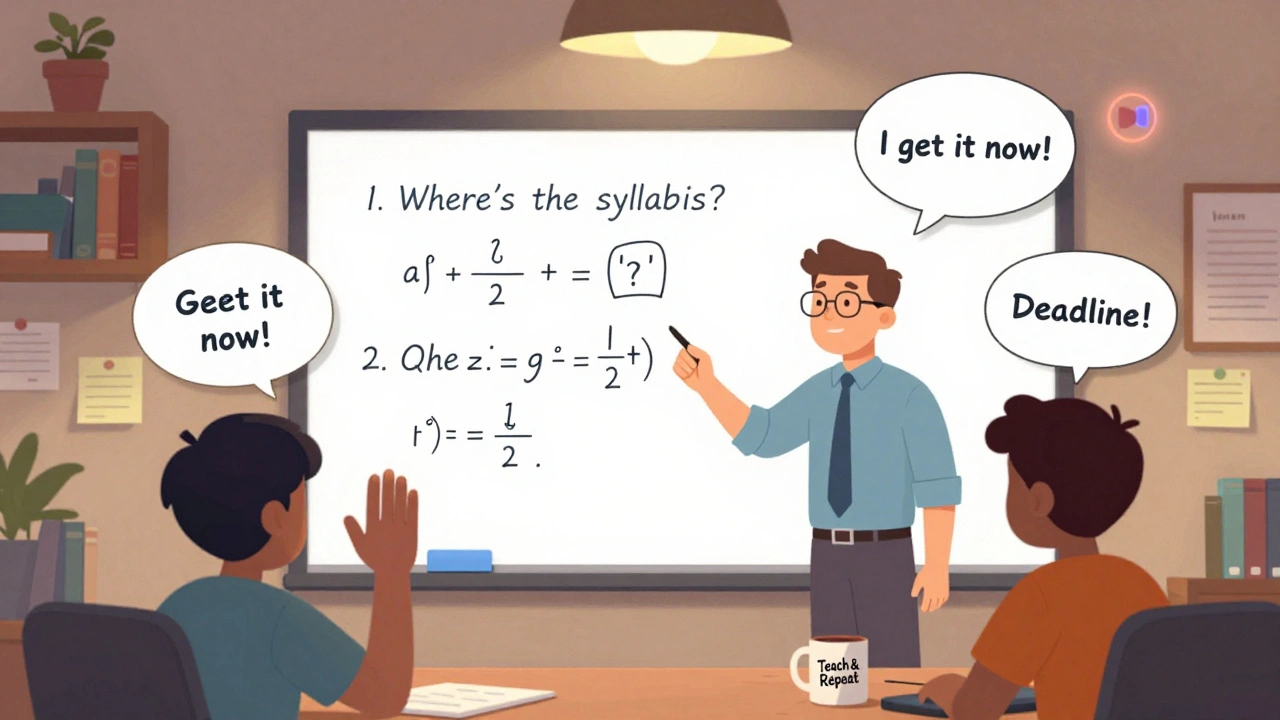
Here’s what actually works when you’re live:
- Start with a warm-up: “Hi everyone, thanks for coming. What’s one thing you’re stuck on?” This breaks the ice. Silence is the enemy of participation.
- Use the chat for questions: Encourage students to type questions as they come up. You can answer them in order or group similar ones.
- Keep it focused: If someone goes off-topic, say, “That’s a great point-let’s take that offline and email you afterward.” Don’t let one person dominate.
- Answer out loud: Even if someone asks a question in chat, repeat it for everyone. Others might have the same question.
- Use screen sharing: Walk through problems live. Show your screen. Point to the exact line of code, the formula, the paragraph. Visuals stick.
- End with a summary: “Today we covered X, Y, and Z. Next week, we’ll focus on A. Questions before we go?”
Don’t feel like you need to solve every problem in real time. Sometimes, just pointing students to the right resource-like a video, a textbook section, or a past lecture-gives them the push they need.
What Not to Do
Here are the mistakes that make office hours useless:
- Skipping them: If you cancel too often, students stop showing up. Even if only two people come, show up.
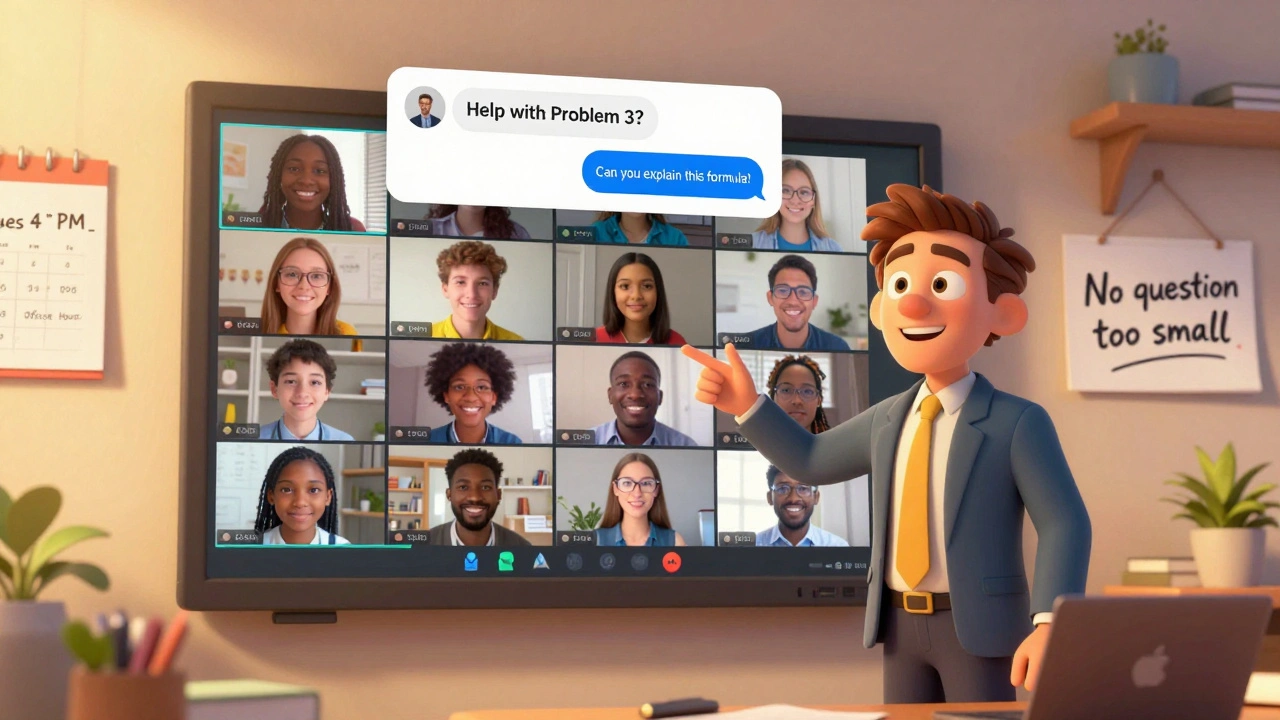
- Going silent: Don’t just sit there waiting for someone to ask. Start the conversation. Say, “I noticed a lot of you struggled with Problem 3. Let’s walk through it.”
- Only helping the loudest: Introverted students won’t speak up. Check the chat. Look for names you haven’t heard from.
- Using jargon: Avoid phrases like “as we discussed in Module 4.” Not everyone remembers. Say: “Remember the example with the budget spreadsheet? Let’s do something similar here.”
- Forgetting accessibility: Turn on captions. Share slides ahead of time. Make sure your audio is clear. A student with hearing issues shouldn’t have to choose between attending and understanding.

How to Measure Success
Are your office hours working? Look at these signals:
- Attendance: Are more students showing up over time?
- Assignment quality: Are submissions improving after office hours?
- Feedback: Ask students directly. One simple question: “Did office hours help you understand the material better?”
- Email volume: Are you getting fewer “I don’t get it” emails after office hours start?
One instructor at Arizona State University tracked this over a semester. After adding weekly office hours, email volume dropped by 65%. Final exam scores rose 9%. That’s not luck-it’s structure.
Scaling Office Hours for Large Classes
If you’re teaching 100+ students, you can’t handle every question alone. That’s where teaching assistants come in.
Train TAs to run their own small-group sessions. Assign them specific topics: one handles math problems, another tackles essay structure. Rotate them weekly so students get different perspectives.
You can also create a “help hub” with pre-recorded videos answering common questions. Link to them in your announcements: “Stuck on the regression analysis? Watch this 5-minute walkthrough.”
And don’t underestimate peer support. Set up a discussion board where students can answer each other’s questions. Pin your own answers to the top. Reward helpful students with a shout-out or extra credit.
What Comes Next?
Virtual office hours aren’t a perk. They’re a core part of teaching online. Think of them as the glue holding your course together. When students feel seen and supported, they stay engaged. When they don’t, they drop out.
Start small. Pick one time slot. Stick to it. Show up. Record it. Ask for feedback. Adjust. That’s all it takes to turn a vague idea into a powerful support system.
Students don’t need perfect tech. They need someone who shows up.
Do virtual office hours have to be live?
No, but live sessions are more effective. If you can’t host live office hours, record a weekly video answering common questions and post it with a comment section for follow-ups. Students can ask questions in the comments, and you can reply within 24 hours. It’s not the same as real-time interaction, but it keeps the channel open.
How long should virtual office hours last?
45 to 60 minutes is ideal. Shorter than that, and you won’t have time to help more than a few students. Longer than that, and attention drops. If you have a big class, split into two 45-minute sessions instead of one 90-minute one.
Should I require students to attend?
Don’t require attendance. That creates pressure and guilt. Instead, make them valuable. Share what’s covered each week, highlight key takeaways, and show how past attendees improved their grades. Students will come when they see the benefit.
Can I use office hours for grading or feedback?
No. Office hours are for support, not evaluation. If you start giving grades or detailed feedback during these sessions, students will stop asking questions out of fear. Keep it open and low-pressure. Save detailed feedback for assignments and private emails.
What if no one shows up?
It happens. Don’t give up. Use the time to record a quick video answering the top 3 questions from the past week. Post it with a note: “If you’re stuck on this, watch this first.” Then, check in with students privately: “I noticed you didn’t come to office hours-was there something I could’ve done better?” Often, they just didn’t know it was for them.
Kendall Storey
December 6, 2025 AT 19:23Man, I wish I’d known this back when I was TAing for that online bio course. We used Zoom but never set a schedule-students just DM’d us at 2 AM with screenshots of their failed lab reports. Setting fixed slots? Genius. Also, the Google Doc trick? Lifesaver. I started using it last semester and cut my inbox by like 70%. No more ‘I don’t get it’ emails. Just paste the link, boom, problem solved.
Pro tip: Record everything. Even if no one shows up, upload it. Someone’s always lurking.
Ashton Strong
December 8, 2025 AT 10:37Thank you for this comprehensive and meticulously structured guide. The emphasis on predictability, accessibility, and pedagogical consistency aligns with best practices in adult learning theory and asynchronous education design. I have implemented all five foundational steps in my graduate seminar, and student retention and performance metrics have improved substantively. I would only add: ensure that accessibility features-captioning, screen reader compatibility, and transcript availability-are not treated as afterthoughts but as core components of inclusive instruction.
Aafreen Khan
December 9, 2025 AT 17:22lol why u makin this so hard?? just do a discord server and drop a voice channel open all day. students come when they want. no schedule, no recording, no waiting rooms. i taught 300 kids online last sem and my ‘office hours’ were just me vibin in voice chat while i ate ramen. they came. they asked. i helped. done. 🤷♀️☕
Pamela Watson
December 10, 2025 AT 09:19Wait, you mean you don’t just reply to every email instantly? I do that. I reply within 10 minutes, even at midnight. My students love it. I don’t need office hours. I’m always there. They text me. They DM me. I even sent one kid a voice note explaining a calculus problem while I was in the shower. 🚿🎤
Why are you making this so complicated? Just be available. Always. That’s what good teachers do.
michael T
December 11, 2025 AT 00:42Okay but have you thought about how office hours are just another way the system gaslights professors into being emotionally available 24/7? You’re not just teaching-you’re doing unpaid therapy, customer service, and emotional labor while they’re busy posting TikToks about how ‘hard’ their 9-to-5 is.
I used to do this. I’d show up. I’d record. I’d answer every question. Then I got a panic attack in front of my webcam during a 3 AM session because some kid asked why the syllabus said ‘no late work’ but then I gave an extension to someone else. The guilt. The burnout. The silent screaming.
Now I block my calendar. I say ‘no.’ I record a 5-minute video and call it a day. They’ll survive. And honestly? They’ll thank me later for not being their mom.
Christina Kooiman
December 11, 2025 AT 06:20I’m sorry, but this entire article is riddled with grammatical inconsistencies, inconsistent capitalization, and improper punctuation usage. For example, you wrote ‘45 to 60 minutes is ideal’-but ‘45 to 60 minutes’ is a plural subject and requires the plural verb ‘are.’ Also, you used ‘your’ instead of ‘you’re’ in the phrase ‘your course’-wait, no, that one was correct. But then you wrote ‘Don’t feel like you need to solve every problem in real time’-that’s a dangling modifier. And why is ‘Google Doc’ capitalized? It’s not a proper noun. And you say ‘upload it to your LMS’-what if they’re using Canvas? Moodle? Blackboard? You’re being vague. This isn’t professional. This is sloppy. If you’re going to give advice on structure, at least structure your own language properly. I’m not even mad. I’m just disappointed.
E Jones
December 11, 2025 AT 06:42They’re watching you. Every single one of them. Every time you hit ‘record,’ they’re saving it. Every time you say ‘as we discussed in Module 4,’ they’re screenshotting it. Every time you cancel because you’re ‘sick,’ they’re posting it on Reddit with the title ‘Professor X is a Fraud.’
And don’t think the LMS doesn’t track your login times. They know if you logged in at 3 AM to answer one email. They know if you skipped office hours twice in a row. They know you used the same recording three weeks in a row.
They’re building a dossier. And when the semester ends? They’re submitting it to the department chair. With timestamps. With screenshots. With audio clips.
I’ve seen it happen. Three professors. One department. One email chain that went viral. Don’t be next.
Barbara & Greg
December 13, 2025 AT 02:22It is not enough to merely schedule office hours. One must ask: what is the moral imperative of pedagogy? Is education a transaction? A service? Or is it a sacred covenant between teacher and student? To reduce this profound relationship to ‘recording sessions’ and ‘shared Google Docs’ is to commodify the soul of learning. The true teacher does not wait for students to come-they walk into the digital void, lantern in hand, and illuminate the path not because it is efficient, but because it is right.
And yet… I must ask: how many of us are merely performing the ritual of presence, while our hearts remain absent?
selma souza
December 14, 2025 AT 10:16There is no excuse for poor punctuation. You wrote ‘it just needs structure, consistency, and a little empathy.’ The Oxford comma is not optional. It prevents ambiguity. Also, ‘45 to 60 minutes is ideal’ should be ‘45 to 60 minutes are ideal.’ You have ‘they’re’ and ‘their’ mixed up twice in the same paragraph. And why is ‘Notion’ capitalized? It’s a brand name, yes, but in this context, it’s being used generically. You’re setting a bad example. This is for educators. You should know better.
Frank Piccolo
December 16, 2025 AT 00:51Look, I get it. You’re trying to be ‘inclusive.’ But let’s be real-most of these students are just lazy. They don’t want to read the syllabus. They don’t want to think. They want someone to hand them the answer like it’s a Starbucks latte.
And now you’re making them wait in a ‘waiting room’? That’s just customer service. This isn’t a call center. This is academia. Back in my day, you showed up to class on time, asked questions in lecture, or stayed silent. No one handed you a Zoom link and called it ‘support.’
Stop coddling them. Teach them to figure it out. That’s what real learning is.
James Boggs
December 16, 2025 AT 22:40This is excellent. Clear, actionable, and grounded in real pedagogy. I’ve adopted all five setup steps and the shared doc for questions. Student engagement has increased noticeably. Thank you for the practical focus.
Lissa Veldhuis
December 18, 2025 AT 17:28Why are you even doing this? I mean really. Who cares if they pass? Most of these kids are just here for the degree. They don’t care about learning. They care about the GPA. You think they’re gonna remember your office hours in five years? No. They’re gonna remember the time you gave them an extension because they cried. Or the time you let them resubmit because they ‘had a family emergency.’
And now you’re recording everything? So they can use it to sue you later? So they can post your voice saying ‘this is basic’ on TikTok? You’re giving them ammunition.
Just send them the answer key and move on. Save your energy. They’re not worth it.
Michael Jones
December 19, 2025 AT 14:42It’s not about the tech or the time slots. It’s about showing up. Even when you’re tired. Even when no one’s there. Even when you’ve answered the same question 12 times this week. Because for that one student who’s sitting alone in their dorm, scrolling through the syllabus for the third time, wondering if they’re stupid… you being there? That’s the difference between dropping out and sticking around.
Just show up. That’s all.
Rakesh Kumar
December 21, 2025 AT 04:29Bro this is fire! I’m from India and we got online classes since 2020. Our profs never did office hours. We just emailed and waited 3 days. I tried your Google Doc thing last week-holy crap, 17 questions came in before the session even started. I prepped answers and blew through them in 20 mins. My students actually smiled. One even said ‘this is the first time I felt like someone actually cares.’
Record it. Post it. Do it again next week. You’re changing lives here.
Bill Castanier
December 21, 2025 AT 04:59Excellent guidelines. I’ve used this framework with international students in my ESL course. The consistency has reduced confusion significantly. I especially appreciate the emphasis on accessibility and the use of shared documents. Highly recommended.
Ronnie Kaye
December 21, 2025 AT 21:36Wow. So you’re telling me the secret to student success is… showing up? And being human? Who knew?
Next you’ll tell me water is wet and gravity exists. I’m shocked. Truly. I thought we needed AI tutors, blockchain grading, and VR lecture halls. Turns out the magic ingredient was… a calendar and a little kindness.
Guess I’ll go cancel my $200 ‘Online Teaching Mastery’ course now.
Priyank Panchal
December 22, 2025 AT 08:40This is all nice but you’re ignoring the real issue: students don’t prepare. They don’t read the materials. They wait until the last minute. Then they flood your office hours like it’s a free tutoring center. You can’t fix laziness with structure. You can only expose it.
Set boundaries. Enforce them. If they don’t come prepared, tell them to come back after reading the assigned chapters. That’s your job too.
Kendall Storey
December 23, 2025 AT 14:24^ This. I had a kid show up last week with zero notes, no questions, just ‘I’m lost.’ I asked what chapter he read. He said ‘the one with the graphs.’ I showed him the syllabus. Page 12. He hadn’t opened it. I told him to come back after reading it. He did. Two days later. Asked a smart question. Got it. That’s the win. Not the Zoom call. The prep.