Live Streaming for Courses: Best Tools and Formats for Real-Time Lessons
 Dec, 26 2025
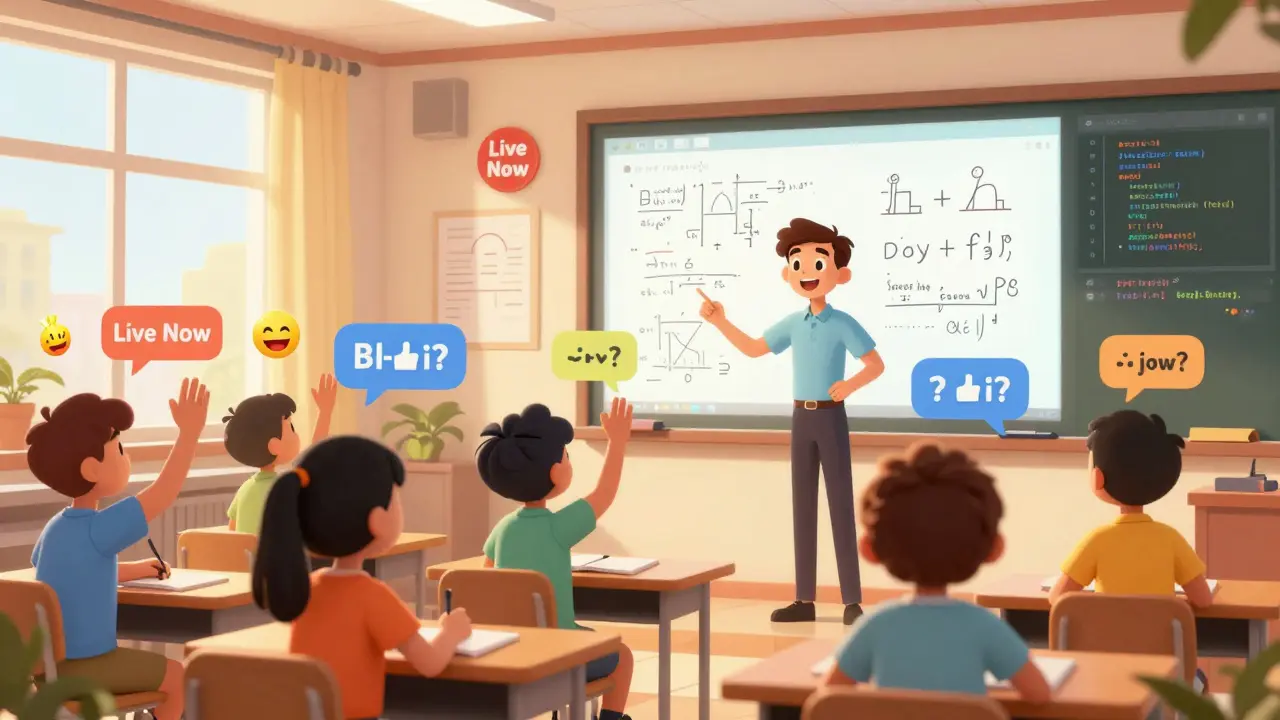
Imagine teaching a class where students raise their hands in real time, ask questions mid-lecture, and share screens to show their work-all without leaving their homes. That’s what live streaming for courses makes possible. Unlike pre-recorded videos, live lessons create a sense of presence, urgency, and connection that keeps learners engaged. But setting this up right isn’t just about hitting "Go Live" on Zoom. You need the right tools, formats, and structure to turn a stream into a real learning experience.
Why Live Streaming Beats Pre-Recorded Videos for Courses
Pre-recorded courses are convenient, but they’re also one-way. Students watch, pause, rewind, and often disengage. Live streaming flips that. It turns passive viewers into active participants. A 2024 study from the University of Michigan found that students in live-streamed courses were 47% more likely to complete the full curriculum than those in self-paced video courses. Why? Because live sessions create accountability. You show up because someone’s expecting you. You ask questions because you know the instructor can hear you. You stay focused because the lesson is happening right now.
Live streaming also lets you adapt on the fly. If half the class is struggling with a concept, you can slow down. If everyone gets it quickly, you can skip ahead. No editing. No re-uploading. Just real-time teaching.
Top Tools for Live Streaming Courses in 2025
Not all platforms are built for education. Some are made for parties, others for corporate meetings. You need something designed for teaching. Here are the top five tools used by educators in 2025:
- Zoom for Education - Still the most popular. Offers breakout rooms, annotation tools, polls, and integrated whiteboards. Free plan limits sessions to 40 minutes, but paid plans support unlimited time and up to 500 participants. Used by 68% of online course creators.
- Microsoft Teams for Education - Best for schools and institutions already using Office 365. Integrates with OneNote, Assignments, and Class Notebook. Great for structured, assignment-based courses.
- StreamYard - A browser-based studio that lets you stream to YouTube, Facebook, LinkedIn, and Twitch at the same time. Ideal for instructors who want to reach audiences across platforms without juggling multiple apps.
- Google Meet with Classroom - Simple, reliable, and free for G Suite users. Works well for smaller classes (under 100 students). Limited interactive features, but great for consistency.
- Demio - Built specifically for live online courses and webinars. Includes automated reminders, registration pages, Q&A moderation, and replay access. Used by paid course platforms like Teachable and Thinkific.
Most of these tools support screen sharing, recording, and chat. But only a few let you integrate quizzes or hand-raising without extra plugins. If your course relies on interaction, prioritize tools with native participation features.
Best Live Streaming Formats for Different Types of Courses
Not every lesson needs the same format. The structure of your stream should match your subject and goals.
- Live Lecture + Q&A - Best for theory-heavy courses like history, philosophy, or business strategy. You teach for 30-45 minutes, then open the floor for 15-20 minutes of questions. Keep it tight. Too long, and attention drops.
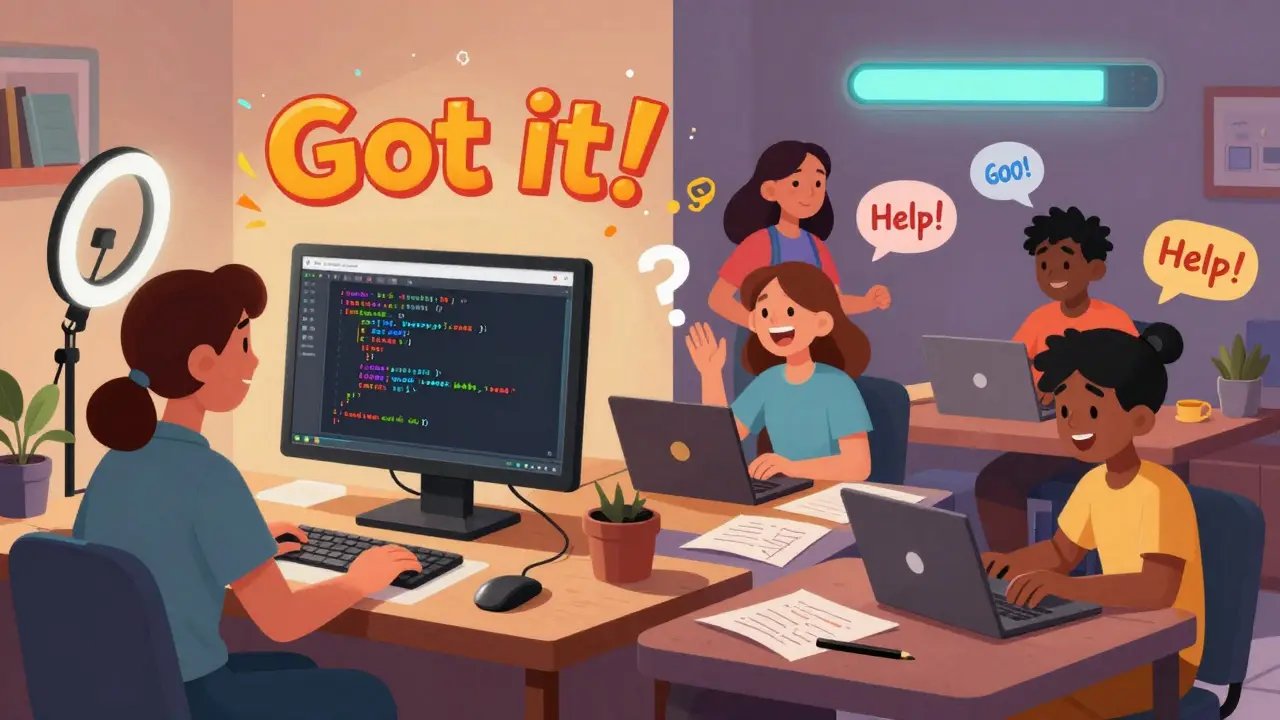
- Workshop Style - Perfect for hands-on subjects like coding, design, or language learning. Demo a skill, then give students 10-15 minutes to try it themselves while you walk through the chat offering help. Use breakout rooms if you have more than 15 students.
- Live Coding Sessions - For programming courses, stream your screen with a code editor open. Narrate every step. Use a tool like GitHub Codespaces or Replit so students can follow along in real time. Record the session so they can revisit tricky parts later.
- Guest Expert Live Sessions - Bring in industry professionals for one-off talks. This adds credibility and variety. Promote these in advance. Students will show up if they know they’re getting access to someone they can’t normally reach.
- Student Showcase Streams - Let students present their projects live. Builds confidence and peer learning. Turn it into a weekly event. Even shy students will prepare better if they know they’ll present to a live audience.
Hybrid formats work well too. For example: 20-minute mini-lecture → 10-minute group activity → 15-minute Q&A. Structure keeps energy high.
How to Keep Students Engaged During Live Streams
Attention spans online are short. Without the physical presence of a classroom, students can easily drift off. Here’s how to keep them locked in:
- Start with a poll - Use Zoom or StreamYard’s built-in polling feature to ask: "What’s your biggest challenge with this topic?" It gets people typing and feeling involved.
- Use the chat as a co-teaching tool - Assign a teaching assistant to monitor the chat and surface questions. Say things like, "Sarah in the chat asked a great question about variable scope-let me answer that now."
- Pause every 7-10 minutes - Ask a quick check-in question. "Who here tried the exercise last week? Drop a 👍." Simple signals keep people present.
- Use visual aids - Don’t just talk. Show diagrams, highlight code, draw on a digital whiteboard. Tools like Miro or Jamboard integrate well with most platforms.
- End with a call to action - "Try this for 10 minutes tonight and post your result in the group." Give them a next step. Without it, the lesson ends with the stream.
One instructor teaching Python used a "1-minute challenge" at the end of every session: "Write one line of code that does something new." Students posted screenshots in the chat. Within two weeks, participation jumped 80%.
Common Mistakes to Avoid
Even experienced teachers stumble with live streaming. Here are the top five errors-and how to fix them:
- Not testing tech beforehand - Audio glitches, lag, or no screen sharing can ruin trust. Do a dry run with a friend 24 hours before the stream.
- Going too long - Live lessons should be 45-60 minutes max. After that, retention drops sharply. Break longer topics into multiple sessions.
- Ignoring the chat - If you only talk to the camera, students feel invisible. Assign someone to manage questions or respond to comments yourself every few minutes.
- Recording without permission - Always tell students the session will be recorded. Some may not want to be seen or heard. Offer an opt-out option.
- Expecting perfection - If you stumble over a word or your internet drops for 10 seconds, laugh it off. Students relate to real moments more than polished performances.
How to Monetize Live Streaming Courses
Live courses aren’t just for free content. Many educators use them as the backbone of paid programs.
Here’s how:
- Offer live access as a premium tier - Free students get recordings. Paid students get live access, Q&A, and downloadable worksheets.
- Host live bootcamps - Run a 5-day intensive course with daily live sessions. Charge a flat fee. Limited spots create urgency.
- Use live sessions as lead magnets - Offer a free 30-minute live demo. At the end, invite attendees to join your paid course. Conversion rates are 3x higher than email-only funnels.
- Bundle with community access - Include live streams + private Discord or Slack group. Students pay for the connection, not just the content.
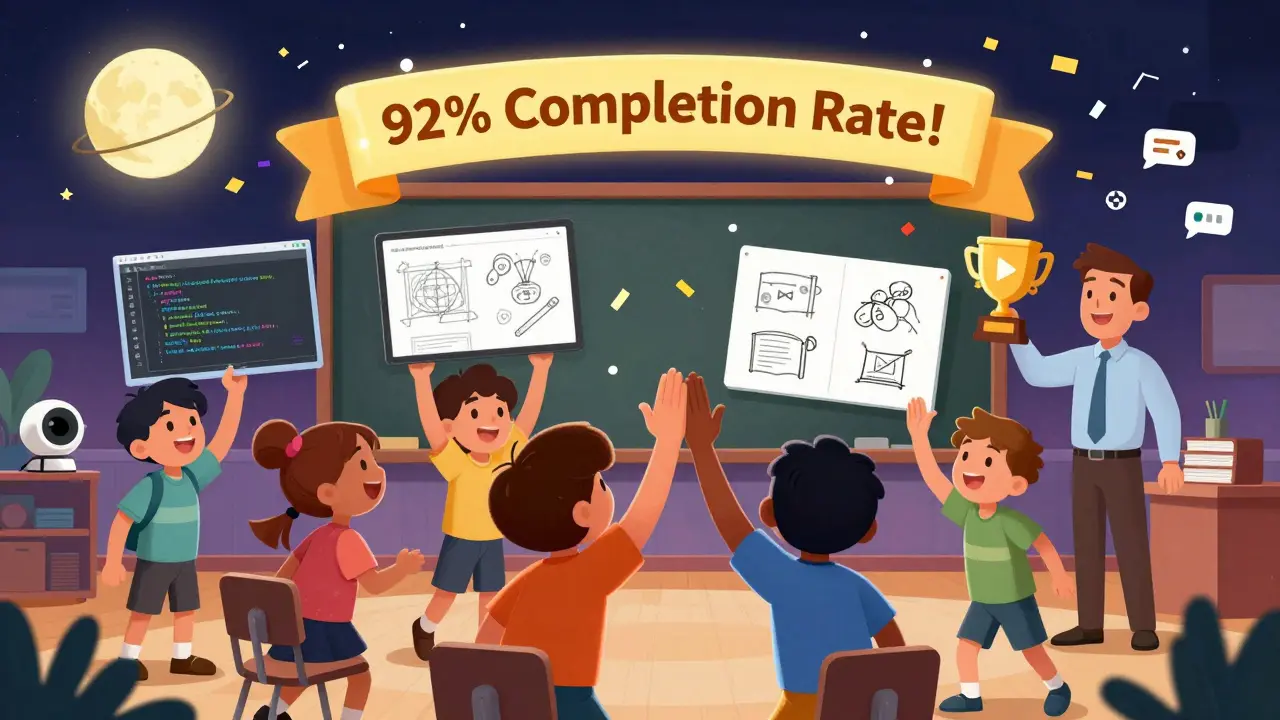
One instructor teaching digital marketing ran a $299 live 4-week course with weekly sessions. She had 120 sign-ups. Her retention rate? 92%. Why? Because students didn’t just watch-they participated.
What Comes After the Live Stream?
Live streaming isn’t the end-it’s the beginning. After each session:
- Upload the recording to your course platform.
- Post key takeaways and links in your learning group.
- Ask students: "What was the most useful thing you learned today?" Use their answers to shape the next lesson.
- Track attendance and participation. Who’s showing up? Who’s falling behind? Reach out.
The best live courses don’t just teach-they build community. The stream is the spark. The follow-up is what keeps the fire going.
Do I need a professional camera for live streaming courses?
No. Most students care more about clear audio and a steady frame than 4K video. A built-in laptop camera works fine if you’re in good lighting. Use natural light from a window or a cheap ring light. Focus on clear sound-invest in a $30 USB microphone instead of a fancy camera.
Can I stream live courses on YouTube for free?
Yes, but with limits. YouTube Live is free and reaches a wide audience. But you can’t control who joins, and comments can get noisy. Use it for public demos or open events. For paid courses, use platforms like Zoom or Demio that let you restrict access and manage participants.
How do I handle technical issues during a live lesson?
Have a backup plan. If your internet drops, switch to phone audio and continue the lesson via voice call while someone else manages the stream. Always have a pre-recorded clip ready to play if you’re offline for more than 2 minutes. Tell students upfront: "If I disappear, I’ll be back in 5 minutes. In the meantime, try this exercise."
What’s the ideal class size for live streaming?
For interaction-heavy formats like workshops or coding, aim for 15-25 students. That’s small enough to give everyone attention but large enough to foster discussion. For lectures with Q&A, you can go up to 50-75. Beyond that, participation drops unless you use breakout rooms.
Should I allow students to turn on their cameras?
Ask, don’t require. Some students feel more comfortable with video off. Others thrive on seeing faces. Create a culture where participation is valued, not forced. You can say: "Feel free to keep your camera off-your voice and chat matter just as much."
kelvin kind
December 28, 2025 AT 06:49Been using Zoom for my coding classes and it works fine. Just make sure you have a decent mic. No need for fancy gear.
Ian Cassidy
December 29, 2025 AT 14:30StreamYard’s multi-platform streaming is a game-changer if you’re trying to scale reach without managing five different dashboards. The RTMP output also lets you self-host if you’re paranoid about platform lock-in.
Zach Beggs
December 30, 2025 AT 11:00Love the idea of student showcase streams. My students actually started organizing their own weekly ‘show & tell’ sessions outside class. Community building is real.
Kenny Stockman
December 31, 2025 AT 23:01Don’t overthink the tech. I had a student drop out because she thought her webcam looked ‘too amateur.’ Told her to just use her phone on a stack of books. She stayed. Human connection > 4K resolution.
Antonio Hunter
January 1, 2026 AT 13:34I’ve found that the most effective live sessions aren’t the ones with the most features-they’re the ones where the instructor is genuinely present. If you’re stressed about the tech, your students feel it. Breathe. Pause. Let silence happen. It’s not a failure-it’s rhythm.
Also, always have a backup plan for audio. I once lost internet mid-session and just switched to my phone’s hotspot while my TA kept the stream going. Students didn’t even notice. They just cared that I showed up.
And yes, recording without consent is a hard no. I had a student cry after realizing their voice was archived without permission. That broke my heart. Always ask. Always document opt-outs.
One thing no one talks about: the emotional labor of live teaching. You’re not just delivering content-you’re holding space. That’s exhausting. Schedule breaks. Let yourself be human.
My students now send me memes after class. That’s the win. Not the analytics.
Paritosh Bhagat
January 3, 2026 AT 03:28Why are we even pretending this isn’t just corporate surveillance disguised as education? Zoom tracks eye movement, Teams logs keystrokes, and Demio collects behavioral data to sell to edtech vultures. You think students are learning? They’re being profiled.
And don’t get me started on ‘engagement metrics.’ If a student turns off their camera, you label them ‘disengaged’? What a joke. Maybe they’re in a cramped apartment with no privacy. Maybe they’re traumatized. Maybe they just need to breathe.
Stop glorifying ‘live interaction’ as some moral imperative. It’s just another way to extract performance from people who already give too much.
I’ve taught for 15 years. The best learning happens in silence, in private, in the spaces between the streams. Not in your 45-minute Zoom theater.
Ananya Sharma
January 4, 2026 AT 15:29Let’s be brutally honest-this entire framework is a neoliberal fantasy dressed up as pedagogy. You’re not fostering community; you’re commodifying presence. The ‘accountability’ you brag about? That’s just performance pressure disguised as motivation. Students aren’t more likely to complete because they’re engaged-they’re terrified of falling behind in a system that punishes silence. And the ‘92% retention rate’? That’s because the alternative-dropping out-is financially catastrophic for most. This isn’t engagement-it’s coercion wrapped in a PowerPoint.
Also, who decided that 45 minutes is the ‘ideal’ session length? Was there a randomized controlled trial? Or did someone at a tech conference just say it sounded right? The entire ‘structure keeps energy high’ mantra is just corporate efficiency logic applied to human learning, which is like trying to optimize love with a spreadsheet.
And don’t even get me started on ‘student showcase streams.’ That’s not peer learning-it’s public humiliation with a participation trophy. You’re turning vulnerability into content. And the instructor? They’re just the ringmaster.
Meanwhile, real education happens in the margins-in the late-night texts, the scribbled notes in the back of a notebook, the quiet moments when no one’s watching. But those don’t show up in your analytics, do they? So they don’t count.
Stop selling this as innovation. It’s just capitalism with a whiteboard.
Lauren Saunders
January 5, 2026 AT 01:02Ugh. You’re all missing the point. If you’re using Zoom or Google Meet, you’re already doing it wrong. The real elite educators use OBS Studio with custom overlays, dedicated audio interfaces, and a green screen. Anything less is just… amateur hour. And don’t even mention ‘cheap ring lights’-if you can’t afford a 3-point lighting setup, maybe you shouldn’t be teaching.
Also, ‘student showcase streams’? Cute. But without professional editing and a curated hashtag campaign, you’re just wasting bandwidth. This isn’t a school project-it’s a personal brand. Build it like one.
Sarah McWhirter
January 6, 2026 AT 14:52Okay but what if the live stream is just a front for a cult? Like, what if the instructor is subtly gaslighting students into thinking their trauma is ‘engagement data’? I once had a teacher who said ‘if you’re not speaking in chat, you’re not healing.’ I left. I’m not a data point.
Also, why do we assume everyone wants to be seen? What if I just want to learn without being performative? Why is silence always framed as disengagement? I think we’re all just scared of what happens when we stop pretending.
Also, the ‘1-minute challenge’? That’s not pedagogy. That’s emotional labor disguised as gamification. You’re not teaching-you’re managing anxiety.
I miss the days when you could just read a book and think. No streams. No polls. No ‘drop a 👍.’ Just quiet.
Also, who owns the recording? Can I sue if my face is used in a promo video I didn’t consent to? I’m not joking. I’ve seen it happen.
And why are we all so obsessed with ‘retention rates’? Are we teachers or SaaS founders?
Also, the ‘$30 USB mic’ advice? That’s the most dangerous lie here. That mic might pick up your landlord yelling, your cat vomiting, or your roommate crying. What if I’m not safe to be heard? What then?
I don’t want to be engaged. I want to be left alone to learn.
Ben De Keersmaecker
January 8, 2026 AT 13:28Minor grammatical note: The phrase ‘you know the instructor can hear you’ should be ‘you know the instructor can hear you’-no comma needed. But more importantly, the entire premise of live streaming as superior learning hinges on a flawed assumption: that presence equals pedagogy.
There’s no empirical evidence that live interaction improves long-term retention beyond social pressure. In fact, cognitive load theory suggests that managing chat, camera anxiety, and tech glitches may impair learning for neurodivergent students.
Also, the ‘47% higher completion rate’ cited? Correlation ≠ causation. It could simply reflect cohort selection bias-students who opt into live courses are inherently more motivated.
And while I appreciate the tool list, none of these platforms address accessibility for low-bandwidth regions. If you’re teaching globally, assuming everyone has Zoom is like assuming everyone has running water.
Let’s stop romanticizing live streams. They’re tools. Not magic.
Gina Grub
January 9, 2026 AT 05:53Live streaming is just capitalism’s answer to loneliness. We don’t need more ‘presence’-we need less performative education. Also, ‘student showcase streams’? That’s not learning. That’s TikTok with a syllabus.
And who the hell decided 45 minutes is optimal? Did they test it on a hamster?
Chris Heffron
January 10, 2026 AT 06:06Love the tip about using the chat as a co-teaching tool! I assign my TA to pick out good questions and it totally changes the vibe. Also, I use 😊 when I’m proud of a student’s answer. Small things, y’know?
Jawaharlal Thota
January 10, 2026 AT 10:57Let me tell you what really works: consistency. I teach three nights a week at 7 PM sharp. Rain or shine. My students show up like clockwork. They don’t care if I’m wearing pajamas or if my cat walks across the keyboard. They care that I’m there. That’s the real tech-not the software, not the lighting, not the polls. Just showing up. Every. Single. Time.
I’ve had students tell me they wait for my class like it’s a meal. One told me, ‘I don’t eat dinner until after your stream.’ That’s not engagement-that’s belonging.
So skip the fancy tools. Skip the analytics. Just be there. Be reliable. Be human.
And yes, I use a $20 USB mic. And my camera is built into my laptop. And I’ve had internet dropouts. And my students still say, ‘Thank you for not giving up.’
That’s what matters.
sonny dirgantara
January 11, 2026 AT 19:26im just here to say i use google meet and it works fine lol
Andrew Nashaat
January 13, 2026 AT 18:58First, it’s ‘you’re’ not ‘your’ in ‘your camera.’ Second, ‘hand-raising’ should be hyphenated when used as a compound adjective. Third, ‘45-60 minutes max’-why not say ‘approximately 50 minutes’? Precision matters. Fourth, ‘Demio’ is capitalized correctly, but you missed a period after ‘Thinkific.’ Fifth, ‘Q&A’ should be ‘Q & A’ with spaces-this isn’t Twitter. Sixth, ‘4K video’ should be ‘four-kilopixel video’ for technical accuracy. Seventh, you say ‘students feel invisible’-but ‘invisible’ is a subjective term; what’s the operational definition? Eighth, you recommend a ‘$30 USB microphone’-but you don’t specify impedance or sample rate. Ninth, ‘drop a 👍’ is inappropriate in formal pedagogical discourse. Tenth, you use ‘we’ inconsistently-sometimes inclusive, sometimes exclusive. This entire article is a linguistic disaster.
Aaron Elliott
January 15, 2026 AT 06:30One must ask: Is the epistemological foundation of live-streamed pedagogy even coherent? The assertion that ‘presence’ equates to ‘engagement’ is a reification of Cartesian dualism-mind and body are not separable, yet we treat the body as a mere vessel for cognitive transmission. Furthermore, the ‘47% higher completion rate’ is a statistical artifact of selection bias, as participants who elect live formats are inherently more conscientious. This is not evidence of efficacy-it is evidence of self-selection. Moreover, the privileging of synchronous interaction over asynchronous reflection constitutes a neo-liberal valorization of immediacy, which fundamentally undermines deep learning. The entire apparatus-Zoom, Demio, StreamYard-is a technocratic apparatus designed to extract affective labor under the guise of educational innovation. One must ask: Who benefits? Not the student. Not the teacher. The platform. The algorithm. The shareholder. This is not teaching. This is surveillance capitalism with a whiteboard.
Sarah McWhirter
January 17, 2026 AT 03:38Wait, so if I turn my camera off, I’m ‘disengaged’? But if I turn it on, I’m ‘performing’? What’s the win here? I just want to learn without being watched.
Antonio Hunter
January 19, 2026 AT 02:57You’re right. That’s the exact trap. We call it ‘engagement’ but we mean ‘visibility.’ And the worst part? We make students feel guilty for not being visible. I stopped requiring cameras a year ago. Attendance went up. Participation went up. Students started staying after to talk. Turns out, they just needed space-not a spotlight.