Technology Troubleshooting for Instructors: Common Issues and Quick Fixes
 Dec, 4 2025
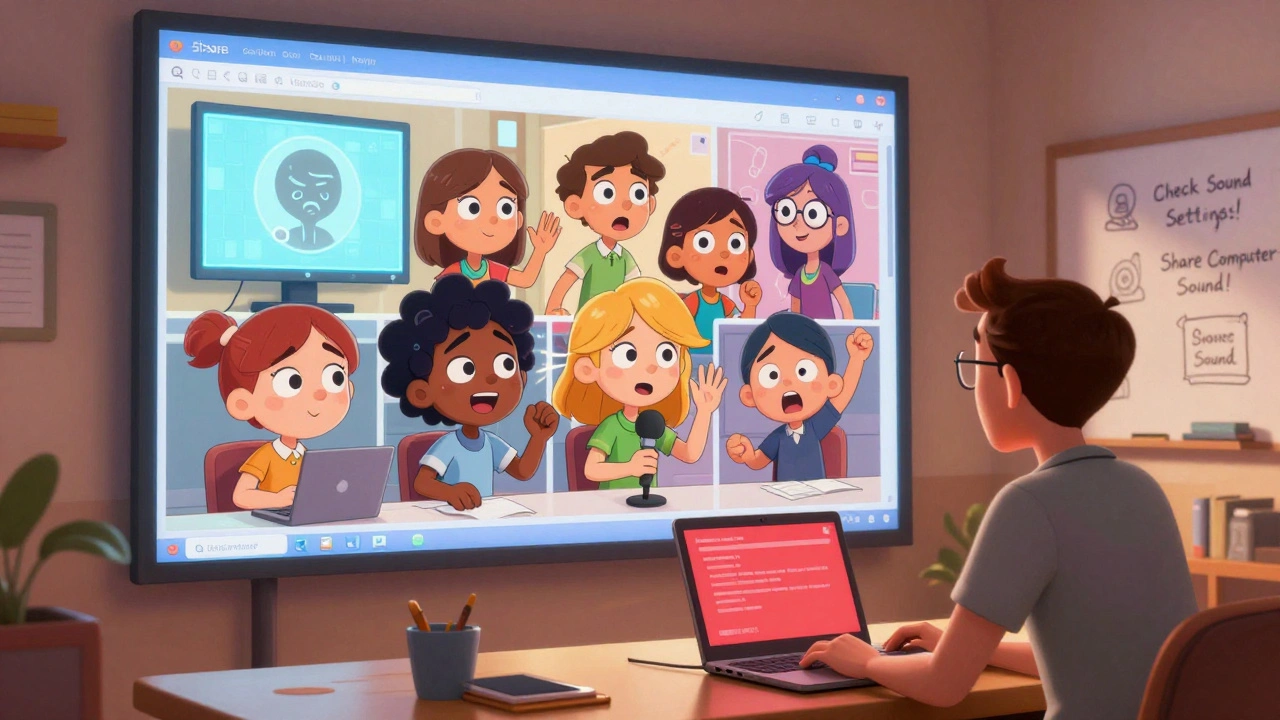
It’s 8:47 a.m. Your Zoom class is supposed to start in three minutes. Ten students are already in the waiting room. One is asking if the link works. Another says their screen is frozen. You click ‘Start Meeting’-nothing happens. You try again. Still nothing. Your heart drops. This isn’t the first time. And it won’t be the last.
Technology problems in the classroom aren’t rare. They’re normal. Whether you’re teaching online, hybrid, or in a smart classroom, tech glitches happen. And when they do, you don’t have time to call IT. You need to fix it-fast.
Why Tech Problems Feel Worse for Instructors
Students can wait. You can’t. When a projector fails during a lecture, students shrug. When your LMS crashes right before assignments are due, students panic. When your microphone cuts out during a live session, you feel like you’re teaching to a wall. The pressure isn’t just technical-it’s emotional.
Most instructors aren’t IT specialists. You didn’t sign up to debug audio drivers or reset network permissions. But you’re expected to. And the truth is, you don’t need to be an expert. You just need to know the top five fixes that solve 80% of problems.
Problem 1: Students Can’t Hear You or See Your Screen
This is the #1 complaint in virtual classrooms. It’s not always your mic or camera. Often, it’s settings you didn’t know you needed to check.
- Check your device audio input/output: On Windows, right-click the speaker icon and select ‘Open Sound Settings.’ Make sure your microphone isn’t muted and the correct device is selected. On Mac, go to System Settings > Sound > Input. Test with the built-in mic level bar.
- Don’t rely on laptop mics: Even the best laptop mics pick up keyboard clicks and fan noise. Use a $20 USB condenser mic like the Fifine K669. It’s cheaper than coffee and sounds 10x better.
- Screen sharing fails? Try ‘Share Computer Sound’: In Zoom, Google Meet, or Teams, when you share your screen, there’s a checkbox labeled ‘Share Computer Sound.’ If it’s off, students won’t hear videos or slides with audio. Always turn it on before you start.
A 2024 survey of 1,200 K-12 and college instructors found that 68% of audio issues were fixed by simply checking these two settings. No software install. No IT ticket. Just a click.
Problem 2: The LMS Is Slow or Locked Up
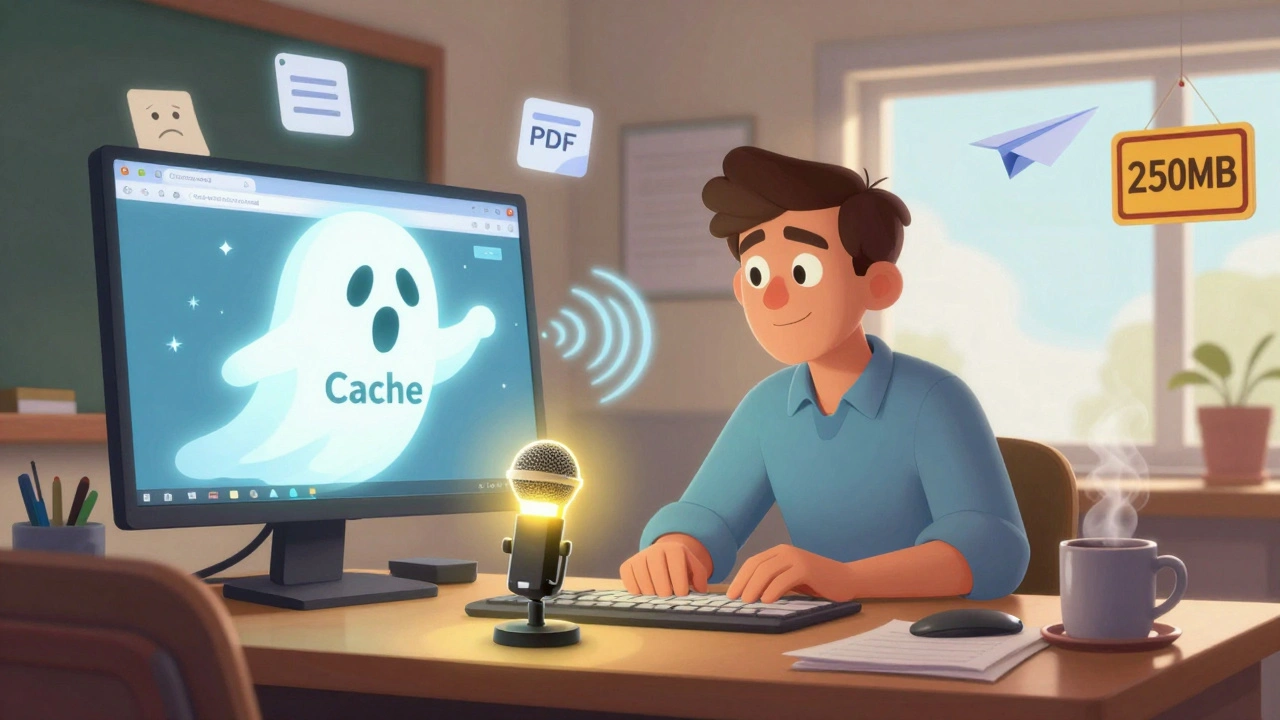
Canvas, Blackboard, Moodle, Google Classroom-they all freeze. Sometimes it’s the school’s server. Sometimes it’s your browser. And sometimes, it’s your cache.
Before you panic and email your tech department:
- Try a different browser. Chrome works best with most LMS platforms. Firefox and Edge sometimes block scripts that LMS tools need.
- Clear your cache. Press Ctrl+Shift+Delete (Windows) or Cmd+Shift+Delete (Mac). Select ‘Cached images and files’ and clear for the past 24 hours.
- Log out and back in. This resets your session token. Many ‘login loops’ are just expired tokens.
- Try accessing from a phone or tablet. If it works there, the issue is on your computer-not the system.
Pro tip: Bookmark your LMS login page. Don’t type the URL every time. Typos in URLs cause 15% of ‘site not found’ errors.
Problem 3: Students Can’t Submit Assignments
‘I clicked submit but nothing happened.’ ‘I got an error message.’ ‘I uploaded it, but it doesn’t show up.’ These are the most common student complaints.
Most of the time, it’s not the student’s fault. It’s how the assignment was set up.
- Check file types: Does your LMS allow .docx? .pdf? .mp4? If you only accept .pdf and a student submits a .docx, it fails silently. Always list allowed formats in the assignment instructions.
- File names matter: Avoid spaces, special characters, or emojis in filenames. ‘Final Essay - Brianna.docx’ breaks on some systems. Use ‘Final_Essay_Brianna.pdf’ instead.
- Size limits: Many LMS platforms cap uploads at 250MB. A 10-minute video can hit that limit fast. Use free tools like HandBrake to compress video files before asking students to upload.
- Use the ‘Submission History’ tab: In Canvas and Moodle, students can see if their file uploaded successfully. If they don’t, they think it failed. Show them where to check.
A 2025 study at Arizona State University found that 42% of ‘missing submissions’ were actually uploaded but hidden due to file naming errors. A simple naming rule cut submission errors by 70%.
Problem 4: Live Polls or Interactive Tools Don’t Work
You launch Kahoot, Mentimeter, or Poll Everywhere-and nothing loads. Students see ‘Connecting…’ for five minutes. You’re stuck.
Here’s the real issue: these tools need fast, stable internet. But most classrooms don’t have it.
- Test the tool before class: Open the poll in a private browser tab. If it loads slowly, your school’s Wi-Fi is overloaded. Switch to a hotspot from your phone.
- Use text-based alternatives: If Poll Everywhere fails, ask students to type answers in the chat. Use a shared Google Doc for real-time responses. It’s low-tech but reliable.
- Have a backup plan: Always prepare a non-tech version. Instead of a live poll, ask students to raise their hand or write their answer on a sticky note. You can collect them after class.
One high school teacher in Tempe switched to Google Forms for quizzes after three failed Kahoot sessions. Her completion rate went from 58% to 91%.
Problem 5: Your Computer Freezes or Crashes During Class
It happens. You’re mid-lecture. Your screen goes black. Your mouse stops. You restart. Class is delayed. Students get frustrated.
Most crashes come from too many open apps. You’ve got Zoom, your LMS, a PDF reader, Spotify, Slack, and ten Chrome tabs open. That’s 12 things fighting for memory.
Fix it with this simple routine:
- Before class, close everything you don’t need.
- Open only: your LMS, your presentation (PowerPoint or Google Slides), Zoom/Teams, and one browser tab for notes.
- Turn off notifications. On Windows: Settings > System > Focus Assist. On Mac: Do Not Disturb.
- Restart your computer every morning. It clears memory leaks and updates background services.
Teachers who followed this routine reported a 60% drop in mid-class crashes. No expensive upgrades needed.
Quick Checklist: 5-Minute Tech Prep Before Every Class
Build this into your routine. Do it every time, even if you’ve taught the same class for years.
- ✅ Test your mic and camera with a 10-second recording.
- ✅ Check that screen sharing includes computer sound.
- ✅ Clear browser cache and restart your browser.
- ✅ Close all unnecessary apps and tabs.
- ✅ Restart your router if you’re using Wi-Fi (unplug for 15 seconds, plug back in).
That’s it. Five minutes. No tech degree required.
When to Call IT (and When Not To)
You’re not alone. But you’re also not helpless.
Call IT only when:
- Multiple instructors are having the same issue.
- It’s a hardware problem (broken projector, dead charger, no internet in the room).
- You’ve tried the fixes above and nothing works.
Don’t call IT for:
- Student login issues (they can reset their own password).
- File format errors (you control the assignment settings).
- Browser problems (switch to Chrome).
- Slow internet (try a hotspot).
Most tech issues are fixable by you-with the right knowledge. You don’t need to be the expert. You just need to know what to check.
What to Do When You Can’t Fix It
Sometimes, tech fails. And you have to teach anyway.
Have a ‘low-tech backup’ ready:
- Print out key slides or notes.
- Keep a whiteboard or poster board handy.
- Use paper worksheets instead of digital forms.
- Turn the class into a discussion. Ask students to share their screens if they’re on a stable connection.
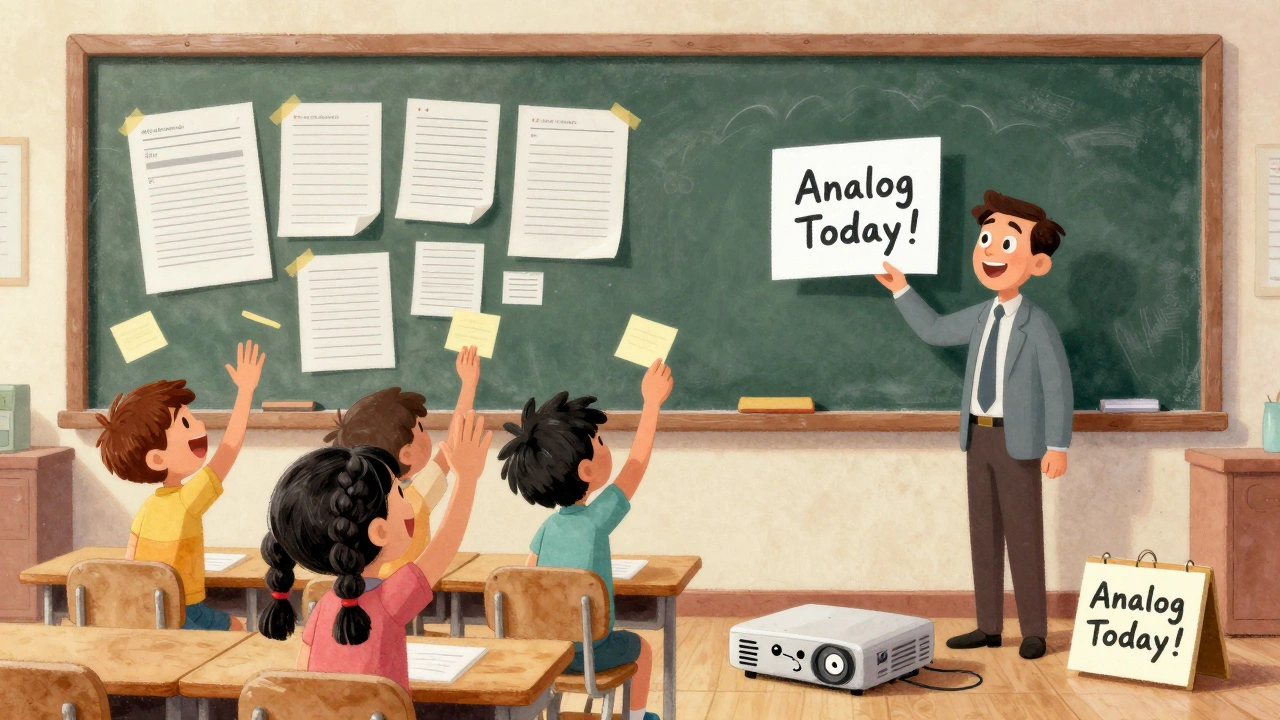
One professor at the University of Arizona stopped panicking when her internet went out. She started saying, ‘Alright, we’re going analog today.’ Students loved it. They felt more engaged. And she didn’t miss a beat.
Technology is a tool. Not a crutch. The best instructors aren’t the ones with the fanciest gear. They’re the ones who keep teaching, no matter what.
Why does my microphone work in Zoom but not in Google Meet?
Each platform has its own audio settings. Even if your mic works in Zoom, Google Meet might be using a different input device. Go to Google Meet > Settings > Audio and make sure the correct microphone is selected. Also, check if another app (like Spotify or Discord) is using the mic. Only one app can use a microphone at a time.
My students say they can’t see my shared screen. What’s wrong?
You might be sharing the wrong window. In Zoom and Teams, you can choose to share your entire screen, a specific app, or a browser tab. If you share your desktop, students might see your background but not your presentation. Always share the actual window with your slides or document. Also, check that your screen resolution isn’t too high-some older devices can’t render 4K screens properly.
How do I prevent students from joining my class early or late?
Enable the ‘Waiting Room’ feature in Zoom or Teams. This lets you admit students one at a time. You can also set a password for your meeting link and avoid sharing it publicly. For Google Meet, use the ‘Only people in my organization’ setting if your school uses G Suite. Never post your meeting link on public forums or social media.
Why does my LMS keep logging me out?
This usually happens when your browser blocks third-party cookies. LMS platforms use cookies to keep you logged in. Go to your browser settings and allow cookies for your LMS domain (like canvas.instructure.com). Also, don’t use private/incognito mode-it blocks cookies by default. If you’re still getting logged out, try a different browser like Chrome or Edge.
My students can’t open the PDF I uploaded. What should I do?
Some PDFs are created with special fonts or encryption that don’t work on mobile devices. Open the file in Adobe Acrobat (not Preview or Chrome) and go to File > Save As > Optimized PDF. This strips out unnecessary data and makes it compatible with phones and tablets. Also, always test the file on your phone before sending it to students.
Next Steps: Build Your Own Tech Toolkit
Start small. Pick one problem you face often. Master the fix. Then move to the next.
Here’s what to build:
- A ‘Tech Quick Reference’ doc with your top 5 fixes and screenshots.
- A printed checklist for your desk.
- A folder of backup files: PDFs of slides, audio recordings of lectures, printable worksheets.
- A list of 2-3 free tools you can switch to if your main one fails (like Padlet instead of Poll Everywhere).
Technology will keep changing. But your ability to adapt won’t. The goal isn’t perfect tech. It’s consistent teaching. And that’s something no glitch can take away.
NIKHIL TRIPATHI
December 4, 2025 AT 17:54I used to stress over Zoom audio until I got that Fifine mic. $20, game changer. No more keyboard clatter ruining my lectures. Also, screen sharing sound? Always on now. I wish I knew this two years ago.
Shivani Vaidya
December 6, 2025 AT 13:33Thank you for this comprehensive guide. The checklist is particularly valuable. Consistency in preparation mitigates stress and enhances pedagogical continuity. I have printed it and placed it beside my workstation.
Rubina Jadhav
December 7, 2025 AT 18:58I just restart my laptop before class. Works every time. No need to overthink it.
sumraa hussain
December 8, 2025 AT 21:45MY GOD. I just realized I’ve been sharing my desktop instead of my PowerPoint window for TWO YEARS. That’s why students kept saying they couldn’t see anything. I’m crying. I’m laughing. I’m buying a whiteboard. This changed everything.
Raji viji
December 9, 2025 AT 10:55LMAO so you’re telling me teachers don’t know how to use a computer? You didn’t need a 2000-word essay to tell us to check the mic and restart the browser. I’ve been doing this since Windows 98. Why are you getting paid to write this?
Rajashree Iyer
December 11, 2025 AT 09:59Technology is not the problem. It’s the illusion of control. We think we can master systems, but they master us. When the screen freezes, it’s not a glitch-it’s a message. Are you really teaching… or just performing?
Parth Haz
December 13, 2025 AT 07:49This is an excellent resource. I’ve shared it with my department. The five-minute prep checklist alone is worth its weight in gold. Keep up the thoughtful work.
Vishal Bharadwaj
December 13, 2025 AT 16:54Wait so you’re saying chrome works better? Wow. Who knew. And clearing cache? That’s a breakthrough. Also, your grammar is kinda off in the second paragraph. Should be 'you’re expected to' not 'you are expected to'. Just sayin’.
anoushka singh
December 15, 2025 AT 15:57Wait so you’re telling me I should close Spotify before class? But I need my lo-fi beats to focus 😭 also why is everyone so serious about this? Can’t we just laugh when the mic dies?
Jitendra Singh
December 16, 2025 AT 16:23Good stuff. I’ve been using the same routine for a year now. Restart, mute notifications, check sound. Simple. Works. I don’t even think about it anymore. Just do it.
Madhuri Pujari
December 18, 2025 AT 02:08Ohhh so YOU’RE the one who didn’t know that screen sharing doesn’t include sound by default?? And you wrote a whole article about this?? I’ve been teaching online since 2018 and I still can’t believe people are this clueless. Also, why is your font so small? Is this a test??
Sandeepan Gupta
December 19, 2025 AT 08:28One thing you missed: if students can’t submit, check if the assignment is set to 'Allow submissions after due date'. Sometimes it’s turned off and they get silent errors. Also, remind them to use underscores, not spaces. It’s a small thing, but it saves hours.
Tarun nahata
December 20, 2025 AT 22:45This is fire. I’m printing this out and framing it. I’ve had Zoom meltdowns that made me cry. Now I’m ready. I’ve got my mic, my checklist, my backup PDFs. I’m not just a teacher-I’m a tech ninja now. Let’s go!
Aryan Jain
December 21, 2025 AT 06:50Who really controls this tech? Big EdTech is watching us. They want us dependent. They profit when we panic. That’s why they make LMS so confusing. They don’t want you to fix it. They want you to pay for IT support. Wake up.
Nalini Venugopal
December 21, 2025 AT 21:59Thank you for the file naming tip! I just fixed my entire assignment submission system. Students are now using underscores. No more 'Final Essay - Brianna.docx' disasters. Small change, huge difference. Also, your punctuation is perfect.
NIKHIL TRIPATHI
December 21, 2025 AT 22:08Also, if you’re using a Chromebook and your mic isn’t working, check the microphone permissions in the settings. I had a student who couldn’t speak for three weeks because Chrome blocked it by default. No one told them.